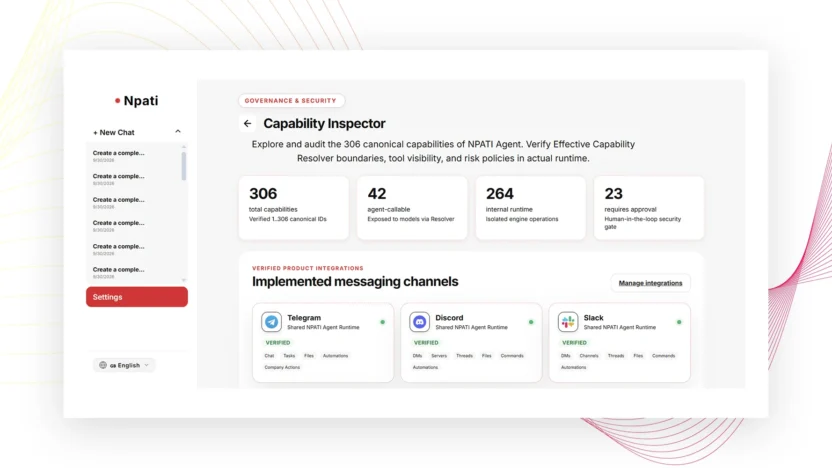
Capability Inspector in NPATI AI Agent helps you understand which tools and capabilities exist in the platform, which can be called by agents, which are runtime-only, and which require approval. It is an audit and visibility tool: seeing a capability in the catalog does not automatically enable it for every agent.
Open Settings → Capability Inspector to review the current capability catalog. The total number of capabilities is dynamic, so use the live page rather than relying on a fixed count.
What Capability Inspector shows
The Inspector reads the canonical capability catalog and can show summary counts and detailed rows. Each row can include information such as domain or type, current status, and risk level. The page can also separate capabilities that are callable by an agent, available only at runtime, or protected by an approval requirement.
This is useful when you are building an AI Company and need to understand what tools are available before assigning them to agents.
How to find a capability
- Open Capability Inspector.
- Use search to find a capability by name or identifier.
- Use the available tabs or views to narrow the catalog.
- Sort the list if you need to compare entries.
- Adjust pagination to 25, 50, 100, or all entries where available.
- Open or inspect the row to understand its type, status, and risk information.
- Copy the capability ID when you need an exact identifier for configuration or troubleshooting.
Callable, runtime-only and approval-required capabilities
These labels answer different questions:
- Callable by agent: the capability is available for agent invocation in the relevant environment.
- Runtime-only: the capability exists for runtime behavior but is not necessarily exposed as a direct tool for an agent.
- Approval required: using the capability may require a user approval step before the action continues.
Do not treat visibility as permission. An agent still needs the appropriate tool or capability assignment in its own configuration.
How Capability Inspector relates to agent permissions
The Inspector is not an enable/disable switch for individual agents. If you find the capability you need, return to the agent configuration in Company and add the required tool where the interface allows it. If the capability depends on an external service, Manage Integrations can take you to the related integration area.
Use risk information before assigning tools
Risk information is especially useful when an agent can perform actions that change data or interact with external systems. Give each agent only the capabilities required for its role, and keep approval-protected actions behind confirmation when the platform requires it.
For example, a content agent may not need the same action tools as an operations agent. Narrow permissions make the company structure easier to understand and audit.
Verify a capability with a real run
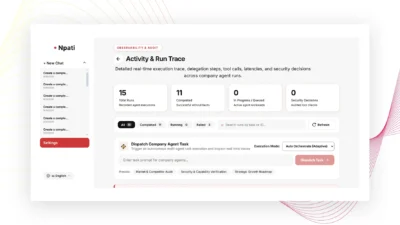
After assigning a tool to an agent, run a small controlled task and inspect the result in Activity & Run Trace. That view can show the actual tool audit, delegated steps, decisions, and errors, which is more useful than assuming a capability works simply because it appears in the catalog.
Common Capability Inspector mistakes
Assuming visible means enabled
A visible capability is part of the catalog. It does not mean every agent can call it.
Using a fixed capability count in documentation
The catalog is dynamic. Refer readers to the live summary instead of promising an exact permanent number.
Ignoring approval requirements
If a capability is marked as approval-required, design the workflow so the user can review and approve the action when prompted.
Next steps
After auditing tools, configure them on the right agents in the AI Company guide, connect any required services in Integrations, and validate real execution with Activity & Run Trace.
Explore the project and installation resources in the NPATI AI Agent GitHub repository.
FAQ
Does Capability Inspector enable tools for agents?
No. It provides visibility into the capability catalog. Agent access is configured separately.
Why should I copy a capability ID?
An exact capability ID is useful when configuring tools, comparing entries, or diagnosing a specific runtime action without relying on similar display names.