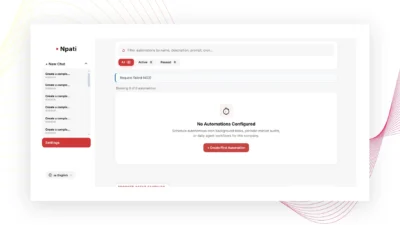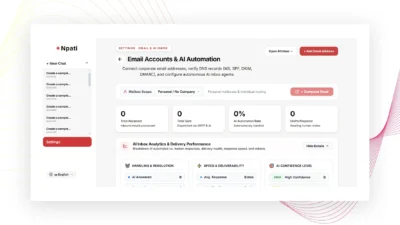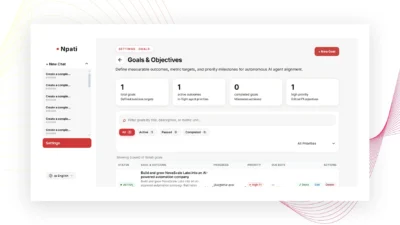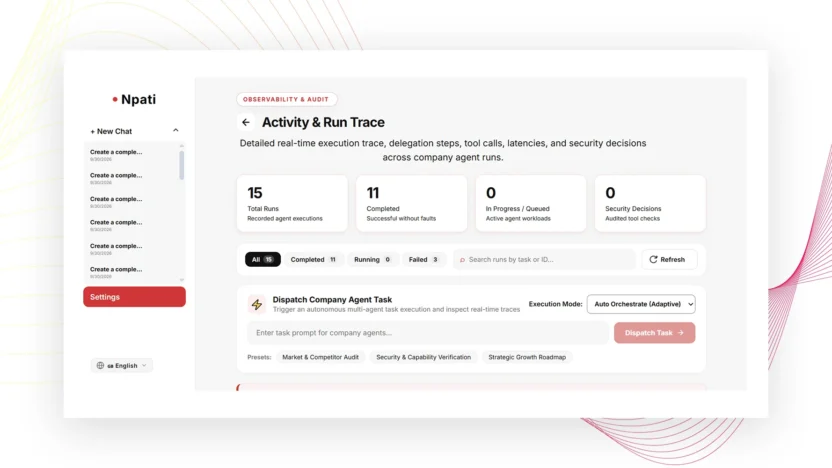
Activity and Run Trace in NPATI AI Agent is the place to inspect what actually happened during an AI Company run. Instead of relying only on the final answer, you can review run status, delegated steps, tool activity, decisions, errors, and the final result.
Open Settings → Activity & Run Trace. This view is especially useful after creating an AI Company, testing a new capability, or diagnosing a failed automation.
What Activity & Run Trace is for
The Activity page gives you an execution history for company runs. You can review completed runs, active runs, and failed runs, then open one record to see deeper details. This makes it possible to move from “the result looks wrong” to a more specific question such as “which step failed?” or “which tool was called?”
How to inspect a run
- Open Activity & Run Trace.
- Select the correct company.
- Use search and filters to find the run.
- Open the run details.
- Review its current status.
- Inspect the timeline and delegated steps.
- Check the tool audit, decisions, and any error text.
- Review or copy the final result where available.
You can also copy the run ID. Keeping the exact run ID is useful when comparing multiple executions or discussing a specific failure.
Understand run statuses
Runs can move through states such as queued, planning, running, cancelling, completed, failed, and cancelled. The exact state tells you where execution stopped or whether it finished normally.
If the list appears stale, use Refresh. Some views are cached for faster opening, so a manual refresh asks for the current state.
Read the execution timeline
The timeline helps you understand the order of work. In a multi-agent company, a task can be delegated between agents. Look for the point where responsibility changes, which tool was used, and what happened immediately before an error or unexpected result.
This is particularly valuable when using pipeline or fusion-style company runs, because the final output may combine work from multiple delegated steps.
Use Tool Audit to verify capabilities
If you recently enabled a capability, do not verify it only in Capability Inspector. Run a small task and use the tool audit in Activity to see whether the capability was actually invoked and whether it succeeded.
If the tool did not run, check the agent configuration. If it ran and failed, inspect the specific error and the surrounding step rather than changing unrelated settings.
Diagnose failed AI Company runs
A useful troubleshooting sequence is:
- Confirm the correct company and run ID.
- Check the run status.
- Find the first failed or unexpected step.
- Identify the agent responsible for that step.
- Check the tool or capability used.
- Read the exact error message.
- Fix the narrowest relevant configuration.
- Run a short test again and compare the trace.
This approach avoids guessing and gives you evidence from the actual run.
Activity vs final result
The final result tells you what the run produced. Activity explains how the system got there. For troubleshooting, quality review, and capability validation, both matter. A successful-looking answer can still reveal an unexpected route or tool choice in the trace, while a failed run can often be understood quickly from the first concrete error.
When to use Activity & Run Trace
- After building or changing an AI Company.
- After assigning a new model or fallback model.
- After enabling a capability.
- After testing an Automation.
- When a run fails or produces an unexpected result.
- When you need the run ID or final output for review.
Next steps
If the trace points to an agent configuration problem, return to Company. If it points to a tool-access issue, review Capability Inspector. For recurring tasks, use the trace after a manual test before leaving an Automation active.
You can explore the open project in the NPATI AI Agent GitHub repository.
FAQ
Why should I refresh a run?
Some list data can be cached for performance. Refresh requests the current state so you can see the latest status and result.
What should I check first when a run fails?
Start with the exact run status, then locate the first problematic step, tool, and error message. Diagnose from the trace rather than from assumptions.