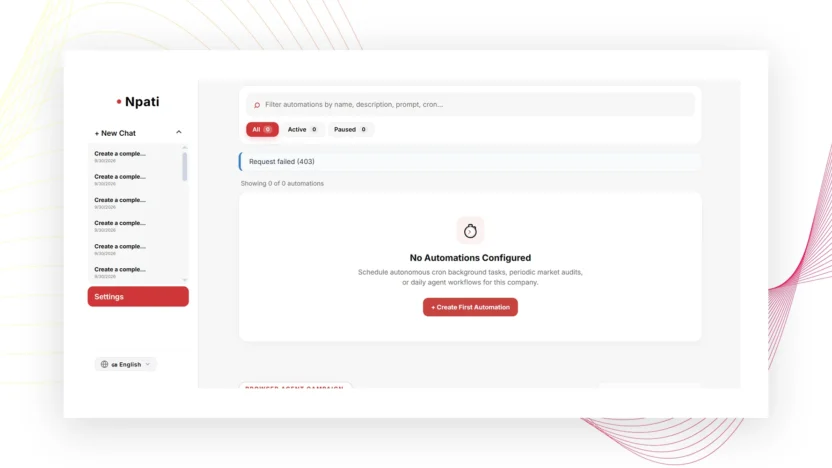
Automations in NPATI AI Agent let an AI Company run recurring tasks on a schedule instead of waiting for a manual prompt every time. You can define the automation, choose an agent, write the prompt, configure a cron schedule, test it immediately, review history, and pause or reactivate future runs.
Open Settings → Automations. Before building a recurring workflow, make sure the correct company and agent already exist and can complete the task manually.
What you need before creating an automation
A reliable automation starts with a working manual workflow. Configure the AI Company first, give the selected agent the required models and tools, then run a small test. Use Activity & Run Trace to verify the task completes as expected.
This prevents a scheduling problem from hiding an underlying agent, tool, or prompt problem.
How to create an automation in NPATI AI Agent
- Open Automations.
- Select the correct company.
- Choose New Automation.
- Enter a clear automation name.
- Add a description of its purpose.
- Select the agent that should run the task.
- Write the prompt with the exact recurring instruction.
- Choose a schedule preset or enter the required cron expression.
- Select Save.
- Use Run Now for a controlled test before relying on the future schedule.
Write a better automation prompt
A recurring prompt should be specific enough to produce consistent results. State the task, required inputs or context, expected output, and any boundaries the agent must follow. Avoid vague instructions that depend on a human remembering additional context later.
If the automation works with business-specific information, make sure the company, Business Profile, Memory, or Knowledge contains the necessary confirmed context.
Use cron schedules and presets
The scheduler can use a preset or a custom cron expression. Choose a schedule that matches the real business need and gives the task enough time to complete before the next run. For tasks that do not need frequent execution, a simpler schedule is easier to monitor and troubleshoot.
After saving, verify the displayed schedule rather than assuming the cron expression means what you intended.
Run Now before enabling a recurring workflow
Run Now is one of the most useful checks in the automation workflow. It lets you test the same configuration immediately. After the test, open Activity & Run Trace and review the run status, delegated steps, tools, and result.
If the manual run fails, fix that first. A schedule will repeat the same configuration; it will not automatically correct an agent or prompt problem.
Edit, pause, reactivate and review history
- Edit changes the automation rule.
- Pause stops future scheduled execution without deleting the configuration.
- Activate resumes future execution.
- Run Now starts an immediate test or manual run.
- History shows previous automation executions.
- Delete removes the automation after confirmation.
Use history together with Activity when you need to understand whether a recurring workflow is consistently succeeding.
Target website workflows
The Automations area also includes a target-website block for registration or publishing workflows. A target can include a name, registration URL, optional publication URL, selected automation, connected company email, and material. The interface can also show status, an enable/disable toggle, and deletion controls.
This kind of workflow depends on the external website. Configure the company, agent, and corporate email first, then test the target site carefully because third-party pages can change.
Connect email when an automation needs a mailbox
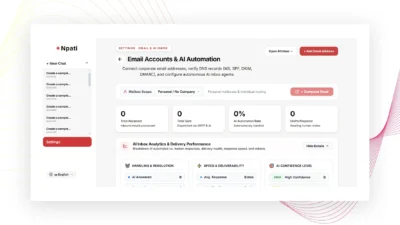
If a target workflow requires a corporate mailbox, configure it first in Email and AI Inbox. Verify the account connection and the agent or company binding before adding it to a recurring workflow.
Common automation mistakes
Scheduling before testing
Run the workflow manually first. This makes failures easier to isolate.
Using the wrong company or agent
Check the company selector and selected agent before saving. An automation is only as good as the context and permissions of the agent that executes it.
Writing a vague recurring prompt
Specify the expected action and output. Repeated tasks benefit from stable instructions.
Ignoring history
Review previous runs when a recurring task begins producing inconsistent results.
Next steps
Build the underlying team with the AI Company guide, check tools in Capability Inspector, and use Activity & Run Trace after every important test.
For the agent code and installation resources, visit the NPATI AI Agent GitHub repository.
FAQ
Should I activate an automation before testing it?
It is better to use Run Now for a manual test first, then inspect the result before relying on the recurring schedule.
Can an automation be paused without deleting it?
Yes. The automation list includes controls for pausing and reactivating future execution.