AI providers in NPATI AI Agent control which AI models your workspace can use and how requests are routed between them. This guide explains the complete setup flow, from connecting a provider to choosing models, testing the connection, setting a default model, and configuring routing rules for cost, reliability, and fallback behavior.
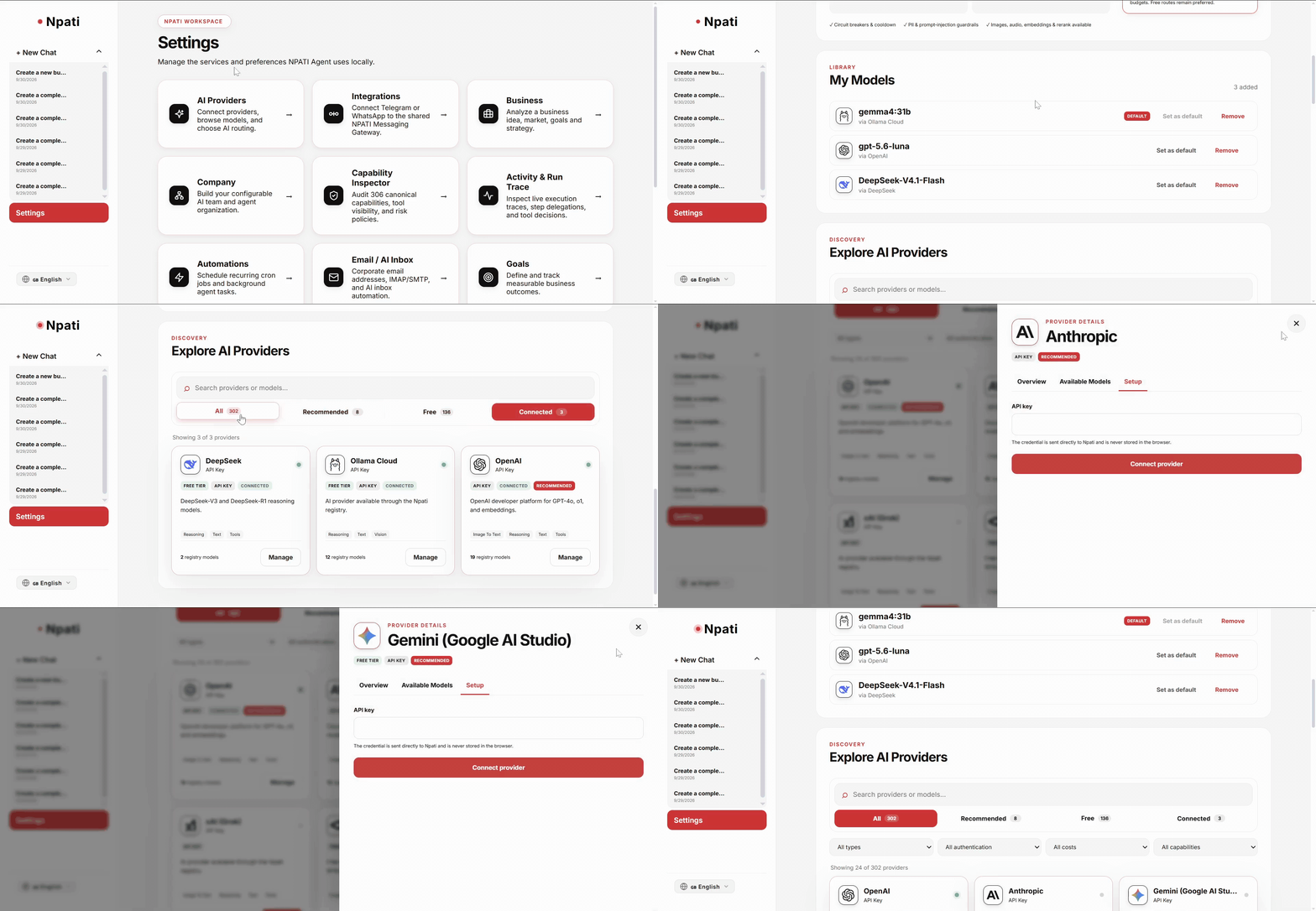
Open Settings → AI Providers to follow the steps below. The available providers, models, connection methods, and automatic-routing options can change over time, so always use the options currently shown in your NPATI workspace.
What AI Providers do in NPATI AI Agent
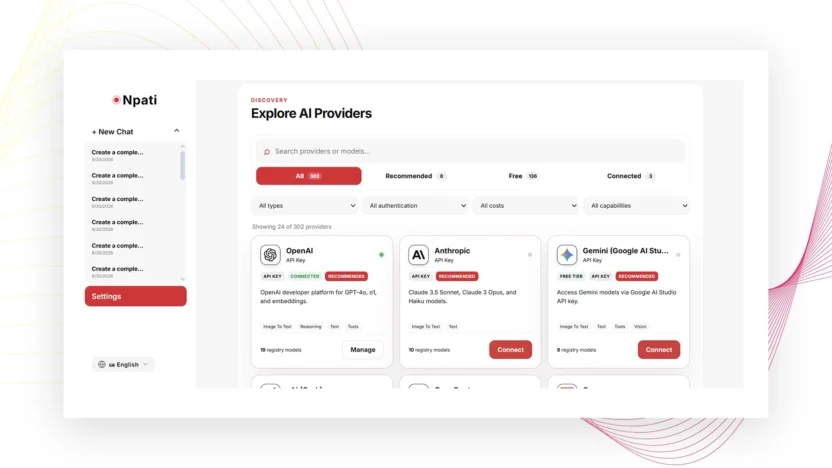
The AI Providers page is the control center for model access. A connected provider is not the same thing as an active model, and an added model is not automatically the model used for every request. NPATI separates provider connection, model selection, and routing so you can control each layer independently.
The catalog can include recommended providers, providers you already connected, additional providers, search and category filters. Depending on the provider, connection may use an API key, OAuth, a local server address, or another supported method.
How to connect an AI provider
- Open AI Providers.
- Find the provider you want to use.
- Open its card and review the available connection method.
- Enter the required connection details.
- Select Connect.
- Use Test to confirm that NPATI can reach the provider.
- Review the models exposed by the connection.
- Choose a model and select Add to NPATI.
If a connection stops working later, Reconnect can repeat the connection flow. Disconnect removes the provider connection. Not every provider supports every connection method, so use the fields shown for that provider rather than assuming an API key is always required.
Choose and manage models in My Models
After a provider is connected, add only the models you actually plan to use. In My Models, you can review the models available to NPATI, choose a default model, or remove a model from your active list. This helps keep model selection clear when your account has access to many providers and model families.
A useful setup is to keep one dependable default model and at least one alternative for fallback. If you are building an AI company with specialized agents, you can later assign different primary and fallback models to individual agents in the NPATI AI Company guide.
Configure AI model routing
Routing determines how NPATI chooses a model when a task runs. Depending on your configuration, you may be able to use automatic or manual routing, select a default model, prefer free models, enable fallback after an error, balance quality against cost, compress context, and set monthly spending controls.
- Default model: the main model used when no more specific rule applies.
- Fallback: an alternative model that can be used if the first option fails.
- Prefer free models: useful when you want to reduce paid usage where supported.
- Quality and cost balance: helps determine whether routing should favor stronger or less expensive models.
- Context compression: can reduce the amount of context sent when that option is available.
- Monthly budget and warning threshold: help control paid AI usage.
- Block paid calls after the limit: prevents additional paid calls after the configured budget is reached, when enabled.
Select Save after changing routing settings. A provider can be connected successfully while routing is still configured to use another model, so check both areas when troubleshooting unexpected model behavior.
How to verify the setup
A good verification sequence is simple: test the provider connection, confirm the required model appears in My Models, set the intended default or routing rule, save the settings, and then run a small task. If the task is executed by an AI company, inspect the result in Activity & Run Trace to see what happened during execution.
Common AI provider setup problems
The provider connects but the model is not used
Check whether the model was actually added to NPATI and whether the routing configuration points to it. Provider connection, model availability, and active routing are separate settings.
The connection test fails
Recheck the connection details required by that specific provider, then use Test again. If the provider uses OAuth or a local endpoint, the troubleshooting steps may differ from an API-key connection.
Paid usage is higher than expected
Review your default model, routing preferences, monthly budget, warning threshold, and any option that prefers free models. The exact controls available depend on your configuration.
Next steps
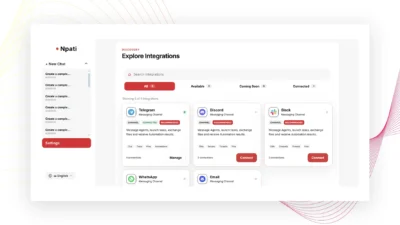
Once your AI models are ready, continue with NPATI AI Agent integrations to connect messaging channels, or build a multi-agent team with the AI Company setup guide.
Want to explore or install the agent itself? Visit the NPATI AI Agent GitHub repository.
FAQ
Do I need more than one AI provider?
No. You can start with one provider and one model. Multiple providers or models become useful when you want alternatives, different model capabilities, or fallback options.
Is connecting a provider enough to make it the default?
No. A connected provider, an added model, and the active routing configuration are separate. Check all three when deciding which model NPATI should use.