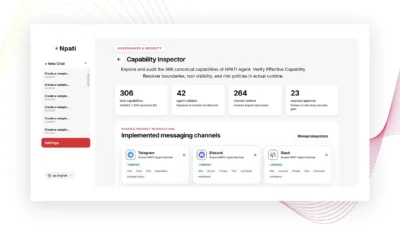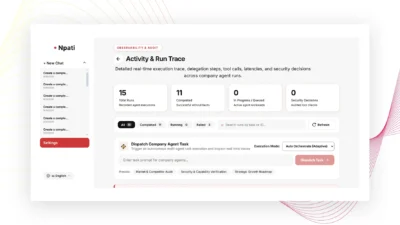
A Business Profile in NPATI AI Agent gives the system structured context about a real business: what it does, where it operates, who it serves, and which products or services it offers. This profile is also used by features such as Goals and Business Memory, so setting it up carefully makes later workflows easier to manage.
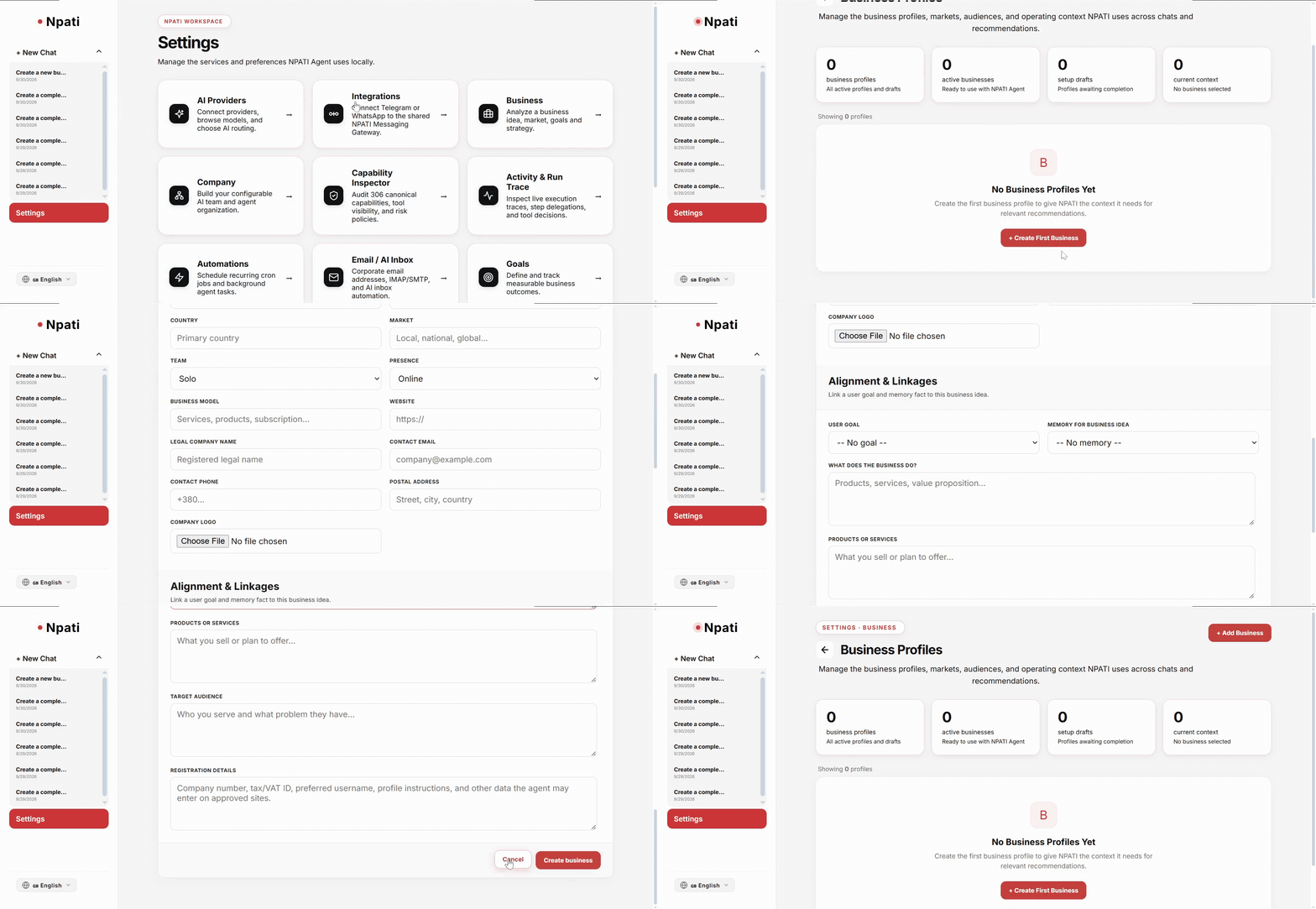
Open Settings → Business to create or manage profiles. Before editing Goals or Memory, always verify which business is currently selected.
What is a Business Profile?
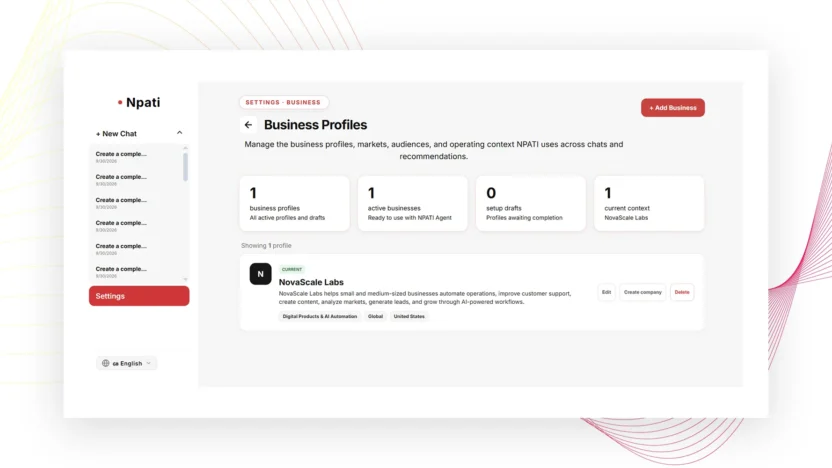
The Business page can show the number of profiles, active businesses, drafts, and the current context. A profile describes the real business. It is different from an AI Company: the Business Profile stores business information, while the Company area defines agents, instructions, models, tools, hierarchy, knowledge, memory, and runs.
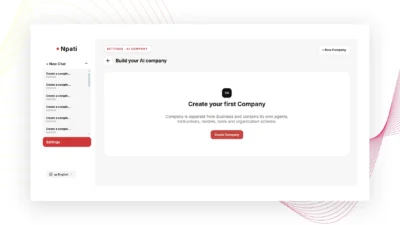
If you want to build an agent team after creating the business, continue with the NPATI AI Company guide.
How to create a Business Profile in NPATI AI Agent
- Go to Business settings.
- Select Add Business.
- Enter the information you already know.
- Save the profile.
- Upload a logo if needed.
- Open the saved profile and verify the information.
- Confirm the correct business is active before using related features.
If you start a profile but do not finish it, the workspace can keep it as a draft so you can continue later.
Business Profile fields explained
The form can include the following information:
- Business name and legal company name.
- Stage: idea, starting, operating, growing, or scaling.
- Industry and niche to describe the market category and specialization.
- Country and market for geographic and commercial context.
- Team: solo or team.
- Presence: online, local, or both.
- Business model and website.
- Contact information: email, phone, and address where appropriate.
- Business description, products, services, and target audience.
- Registration information when known.
The form can also include initial questions about the business. Use accurate information only. If a tax number, registration number, legal detail, or other field is unknown, do not invent it just to complete the form.
Upload a business logo
The logo is uploaded separately. The described interface supports PNG, JPEG, and WebP files up to 5 MB. Use a clear brand logo that remains readable at small sizes, then verify that the saved profile displays the intended image.
Choose the correct active business
This step is easy to overlook. Features such as Goals and Business Memory use the selected Business Profile. If you manage more than one business, check the active profile before creating a goal, adding a fact, or changing business-specific data.
Turn a Business Profile into an AI Company
Create Company uses the Business Profile as the foundation for a separate AI Company and can carry over confirmed memory, goals, research, and instructions where supported. This does not mean the Business Profile itself is an agent team. Agents are created and organized in the Company section.
A practical workflow is:
- Create and verify the Business Profile.
- Add important facts to Business Memory.
- Create measurable Goals if needed.
- Create an AI Company linked to the profile.
- Add the main agent and specialist agents.
- Assign models and tools.
- Run a small test task and inspect the result.
Example Business Profile
For a fictional automation company, you might enter an operating-stage technology business, describe its AI automation and digital services, specify a B2B model, add the website and target audience, and leave any unknown legal registration fields blank. The goal is useful context, not artificial completeness.
Common Business Profile mistakes
Using the wrong active business
Before editing Goals or Memory, confirm the selected profile at the top of the relevant workspace.
Confusing Business with Company
Business describes the real organization. Company configures the AI team. Use each section for its intended purpose.
Inventing missing business data
Do not guess legal, tax, registration, contact, or operational information. Save the confirmed information and update the profile when more data is available.
Next steps
After the profile is ready, create measurable targets with NPATI Goals, store confirmed facts with NPATI Business Memory, or build a team using the AI Company setup guide.
For the agent project itself, visit the NPATI AI Agent GitHub repository.
FAQ
Is a Business Profile the same as an AI Company?
No. A Business Profile describes a real business. An AI Company contains agents, models, tools, hierarchy, knowledge, memory, and execution runs.
Can I create more than one business?
The workspace can display multiple business profiles and an active business context. When managing several profiles, always check which one is selected before making business-specific changes.