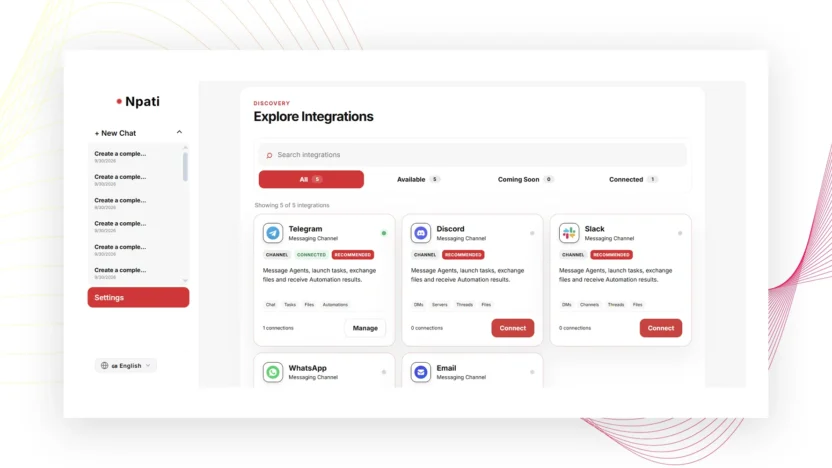
NPATI AI Agent integrations let you connect messaging channels to your account, company, or agent context so users can interact with the right AI workflow from tools they already use. This guide covers Telegram, WhatsApp, Discord, and Slack through the NPATI Messaging Gateway, including pairing, access restrictions, testing, reconnecting, and channel-specific settings.
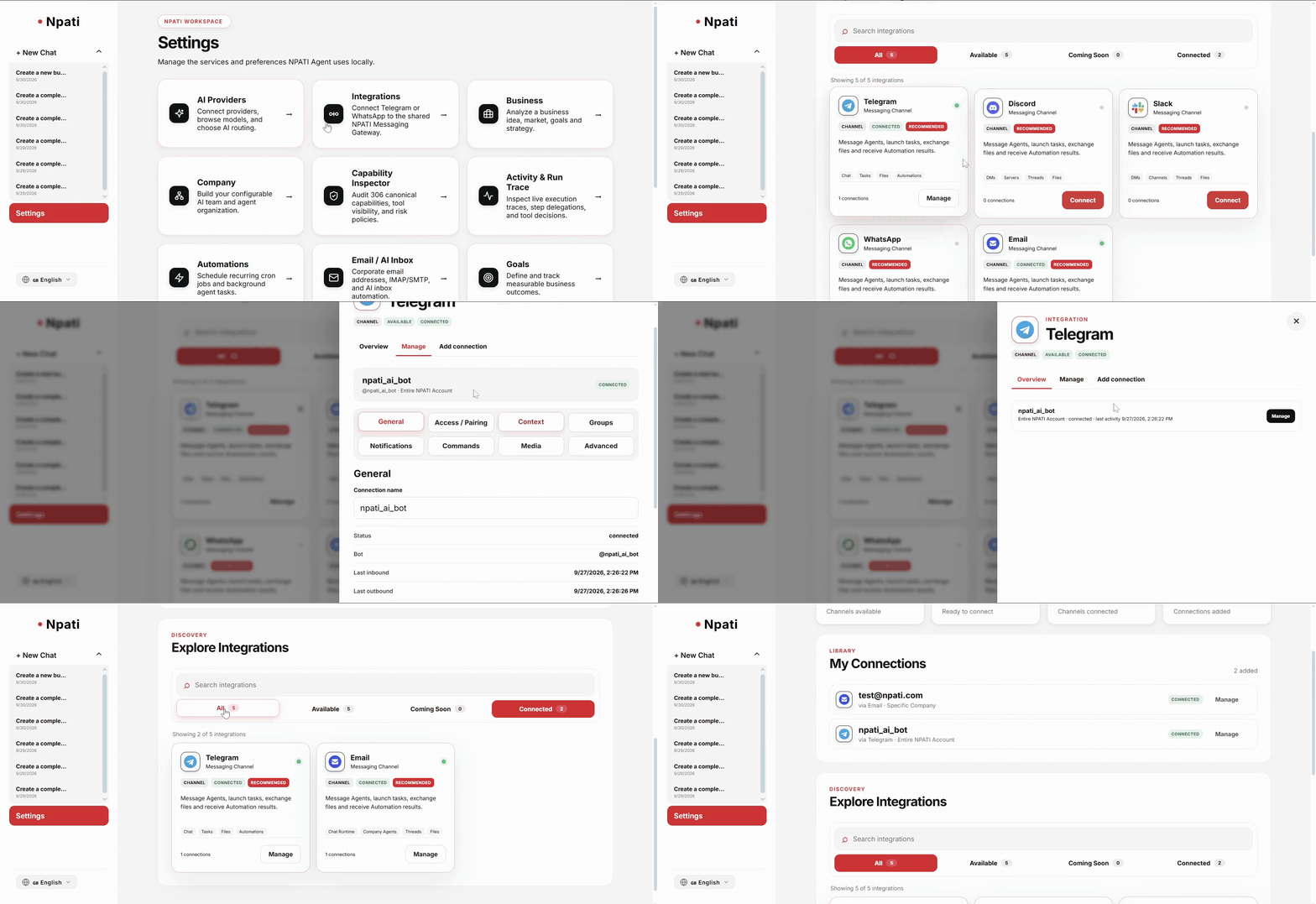
Start on Settings → Integrations. The exact fields can vary by channel and configuration, so use this guide as a map of the workflow while following the options shown in your account.
How messaging integrations work
A messaging channel can be linked to an account, company, or agent context depending on the available settings. That binding matters because it determines who receives the message and which AI context is used to process it.
Before connecting a channel, decide what you want it to do. For example, a support Slack channel may need a company-specific agent, while a private Telegram bot may be tied to an account context. Clear access rules reduce the chance that an unintended user or group can trigger the wrong workflow.
Connect Telegram to NPATI AI Agent
Telegram setup can include a bot token, a pairing command, allowed user IDs, allowed groups, mention requirements, notification settings, and media handling.
- Open the Telegram integration card.
- Enter the bot token or other fields shown by NPATI.
- Select Connect.
- Use the displayed pairing command where required.
- Add allowed IDs or groups to restrict access.
- Decide whether users must mention the bot in group conversations.
- Save the settings and send a real test message.
Connect WhatsApp
WhatsApp may offer QR-based or Cloud-based connection options. Depending on the method, the setup can include linking, allowed contacts, self-chat behavior, or a Cloud webhook.
After connection, verify a real inbound and outbound test if your configuration supports both. This confirms more than a successful connection badge: it shows that the message flow actually reaches the intended context.
Connect Discord
Discord configuration can include a bot, invite URL, direct-message pairing, servers, channels, roles, and mention rules. Use the smallest set of permissions and locations required for the intended workflow.
For a team workspace, explicitly choose which server and channels can interact with the bot. If role restrictions are available, use them to keep agent access aligned with your internal permissions.
Connect Slack
Slack setup can use an app with Socket or HTTP mode and may require tokens, a signing secret, events or webhook configuration, allowed workspaces, channels, and users. The exact combination depends on the connection method shown in NPATI.
- Create or select the Slack app configuration required by the interface.
- Enter the requested credentials or secrets.
- Configure events or webhooks if the selected mode requires them.
- Restrict access to the intended workspace, channels, and users.
- Save the integration.
- Send a test message and verify the response context.
Connect, Test, Reconnect and Disconnect
The main actions have different purposes. Connect starts the initial connection, Save stores configuration changes, Test checks the integration, Reconnect restores or repeats a broken connection, and Disconnect removes it. Copy buttons may provide a pairing command or webhook value that you need in the external messaging platform.
Best practices for secure messaging access
- Allow only the users, groups, channels, servers, or workspaces that need access.
- Use mention requirements in busy group environments when appropriate.
- Test with a real message after saving.
- Check the selected company or agent context before opening access to a team.
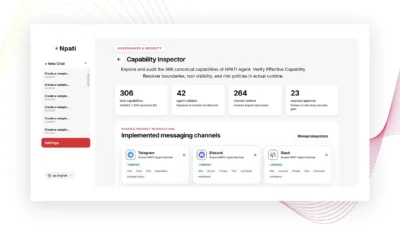
- Review agent capabilities in Capability Inspector and in the agent configuration itself.
Troubleshooting NPATI AI Agent integrations
The integration says connected but no response arrives
Check the allowed users or channels, pairing status, mention requirement, and the company or agent context. A successful connection does not necessarily mean every user is authorized.
A group message does not trigger the agent
If mention requirements are enabled, make sure the bot is mentioned. Also verify that the group or channel is included in the allowed configuration.
The connection worked before but stopped
Use the available Test and Reconnect actions, then send another real message. For HTTP or webhook modes, confirm the currently displayed webhook-related settings.
What to configure next
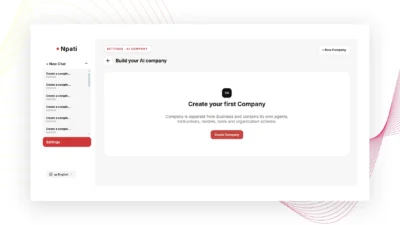
If the messaging channel should work with a dedicated team of AI agents, follow the NPATI AI Company and agents guide. For email-based workflows, continue with Email and AI Inbox setup.
You can also view the project and installation resources in the NPATI AI Agent GitHub repository.
FAQ
Which messaging platforms does this NPATI settings page cover?
The source interface described for this guide supports Telegram, WhatsApp, Discord, and Slack through the NPATI Messaging Gateway.
Can I restrict who can use an integration?
Yes. The available controls vary by channel but can include allowed IDs, contacts, groups, servers, channels, roles, workspaces, users, and mention requirements.