An AI Company in NPATI AI Agent is a structured workspace for a team of AI agents. It can be independent or linked to a Business Profile, and it brings together agent roles, instructions, models, tools, hierarchy, documents, long-term company memory, and task execution in one place.
Open Settings → Company. If you already have a real business profile, you can link it to the AI Company. If not, the Company can be configured independently where the interface allows it.
Business Profile vs AI Company
The distinction is important. A Business Profile describes the real business. An AI Company defines how the AI team works: which agents exist, what each agent does, which models and capabilities they can use, who coordinates whom, what knowledge they can access, and how runs are executed.
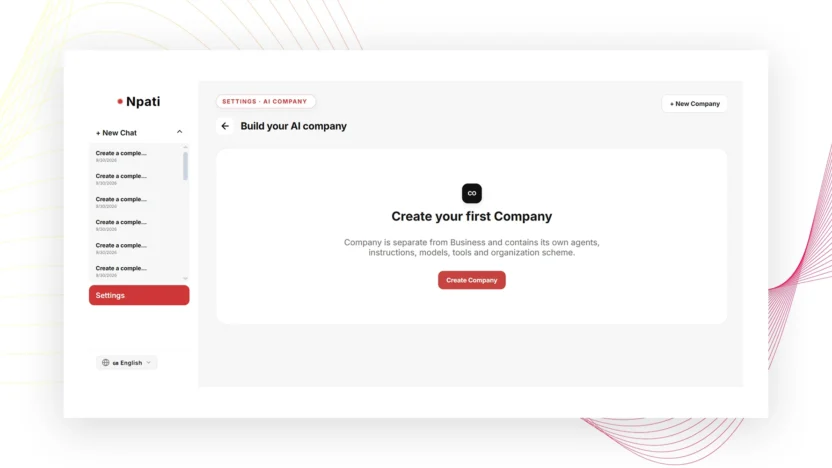
Create a new AI Company
- Open the Company page.
- Select New Company.
- Enter the company name.
- Choose a linked Business Profile or create an independent company where available.
- Add the website, industry, description, products or services, languages, brand tone, and company instructions.
- Select Save.
- Verify that the correct company is selected before adding agents or memory.
Edit Company opens the fields again, while Cancel exits without saving. Updates use a revision check, so if another change happened at the same time, reload the current record and repeat the intended edit rather than overwriting newer data.
Create the main AI agent
A practical multi-agent structure starts with one coordinator. Select Add Agent and configure its name, role, description, system instruction, prompt guidelines, recommended prompts, primary model, fallback model, allowed capabilities or tools, parent relationship, and active status.
If NPATI Auto is available in the model selector, it can be used instead of a fixed model. The exact model list depends on what you configured in AI Providers.
After saving the coordinator, use Set Main Agent so the company has a main agent for execution.
Add specialist agents
Next, create specialist agents with narrow responsibilities. For example, a company could have separate agents for research, sales, support, marketing and content, and operations. Give each agent a concrete role, clear instructions, an appropriate model, and only the tools it needs.
For each specialist, choose the coordinator as the parent agent. This builds a parent → child hierarchy where the main agent can coordinate specialized work without giving every agent the same responsibilities.
Understand the organizational chart
The organizational chart displays the main agent and parent-child relationships. Selecting a node opens that agent for editing. Load More can reveal additional agents in larger structures.
The hierarchy explains who coordinates whom; the role description explains what each agent is responsible for. If you build six agents with one coordinator and five specialists, verify all six cards, confirm the main agent, and check all five parent links.
Assign capabilities and tools
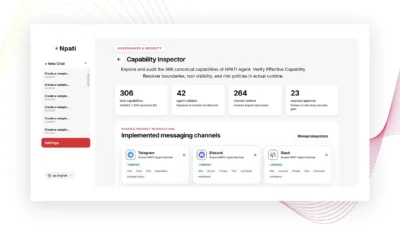
An agent can only use tools that are available and allowed in its configuration. Seeing a capability in Capability Inspector does not automatically grant that capability to every agent. Use the Inspector for visibility and risk information, then explicitly configure the required tools on the relevant agent.
Keep permissions focused. A research agent may need knowledge and browsing-related capabilities, while a support or operations agent may require a different set. The exact capabilities available are dynamic.
Add documents to Company Knowledge
Company Knowledge can accept PDF, DOCX, XLSX, TXT, MD, CSV, TSV, JSON, and XML documents. A file moves through statuses such as uploaded and processing until it becomes ready or failed. The interface can show file size and chunk count.
- Download retrieves the file.
- Retry repeats failed processing.
- Delete removes the document.
- Enable Knowledge can give the main agent the related capability if the documents are ready but the tool is not enabled.
To verify knowledge access, confirm the document is ready, check the agent permission, and ask a small test question whose answer is present in the document.
Use Company Memory
Company Memory stores long-term facts and working rules for the AI team. Add Memory creates a fact; Edit, Save, Cancel, and Delete manage it. This is separate from Business Memory, which stores confirmed facts about a Business Profile. A useful rule is to keep business facts in Business Memory and team-specific operating rules in Company Memory.
Run the AI Company
In Run Company, enter a task and choose the available execution mode: auto, single, pipeline, or fusion. A main agent is required before starting a run.
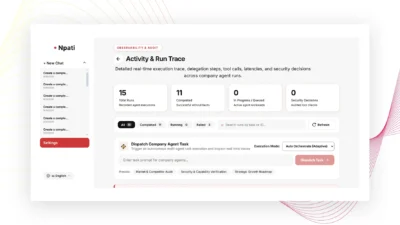
A run can move through statuses such as queued, planning, running, cancelling, completed, failed, and cancelled. If an action needs confirmation, Approve continues it and Reject declines it. For deeper troubleshooting, open Activity & Run Trace to inspect delegated steps, tool usage, decisions, errors, and the final result.
Example: build a six-agent company
For a fictional company such as NovaScale Labs, you could create one coordinator and five specialists: research, sales, support, marketing/content, and operations. Set the coordinator as the main agent and as the parent of the other five. Assign only the relevant tools to each role, verify the organization chart, then run a short test task and confirm the result in Company and Activity.
Common setup mistakes
- Creating specialist agents but forgetting to set a main agent.
- Giving an agent a role but not the tools required to perform it.
- Assuming a capability shown in Inspector is automatically enabled for every agent.
- Editing the wrong company because the selector is pointing to another workspace.
- Uploading knowledge without checking that processing reached the ready state.
- Mixing Business Memory with Company Memory.
Next steps
After your AI Company works in a manual test, create recurring workflows with NPATI Automations, connect business email with Email and AI Inbox, and use Activity & Run Trace whenever you need to understand how a run executed.
To explore the open project and installation resources, visit the NPATI AI Agent GitHub repository.
FAQ
Do I need a Business Profile before creating an AI Company?
No. The described Company model can be independent or linked to a Business Profile. Linking is useful when you want the AI team to work from established business context.
Why does Run Company require a main agent?
The main agent acts as the primary coordinator for company execution. Create and configure it, then set it as the main agent before starting a run.
Can every agent use every capability?
No. Available capabilities and agent permissions are separate. Configure the tools allowed for each agent explicitly.