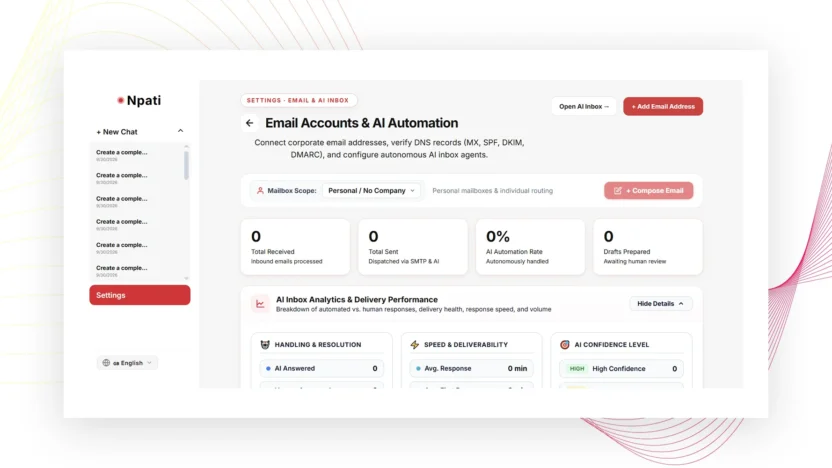
Email and AI Inbox in NPATI AI Agent brings corporate email accounts, message rules, templates, contacts, permissions, and AI-assisted email workflows into one workspace. You can connect mail through IMAP/SMTP or OAuth, bind an account to a company or agent, test the connection, and manage messages in an inbox designed for human and AI collaboration.
Start at Settings → Email. The mailbox itself is available at AI Inbox.
Connect a corporate email account
The Accounts tab is used to create or edit an email account. Depending on the provider and configuration, receiving and sending can use IMAP/SMTP or OAuth. The account can also be linked to a company or agent so the correct AI context is used for email work.
- Open Email settings.
- Create or select an account.
- Choose the available connection method.
- Enter the required account settings or complete OAuth.
- Bind the mailbox to the intended company or agent where needed.
- Save the account.
- Run the connection test.
- Use the available domain DNS check if you need to verify mail-related DNS configuration.
The analytics area can be expanded or collapsed. Treat a successful test as the first verification step, then confirm real message flow in the Inbox.
Create email rules for AI workflows
The Rules tab can classify messages using conditions based on subject, body, sender, domain, attachments, intent, or VIP status. A matched rule can change how the email is handled.
Available actions can include mode, priority, agent, approval requirement, task creation, spam tagging, an automatic reply from a template, or a workflow. This makes rules useful for support, sales, billing, operations, or any inbox where different messages need different handling.
Use templates for consistent replies
Templates store a subject and reply text that can be reused by rules or human workflows. Create separate templates for recurring situations instead of rewriting the same message each time. Keep the text specific enough to be useful but generic enough that a rule does not send incorrect details.
Manage contacts, VIPs and blacklist status
The Contacts area can store email, name, company, phone, VIP or blacklist status, and notes. This context can support inbox filtering and rules. Keep contact records accurate because VIP and blacklist flags can influence message handling.
Control access with Permissions
Permissions can create and revoke keys with selected email scopes. Grant only the scopes required for the intended integration or workflow. Revoke a key when it is no longer needed.
GIF: inbox
How to use the AI Inbox
The AI Inbox includes folders such as Inbox, Sent, Drafts, Archived, and Spam. You can search messages and filter by account, status, or priority.
Compose creates a new email with To, Cc, Bcc, subject, message body, and attachments. You can send it or save it as a draft. Existing conversations support reply, reply all, forward, status and priority changes, and moving messages between supported folders.
AI draft is not the same as sending
This distinction is important for safe email automation. Preparing an AI draft and actually sending a message are separate actions. When a workflow requires approval, the outgoing message waits for the required confirmation rather than treating draft generation as permission to send.
If your company uses agents for support or sales, decide which cases can be automated and which should require human review.
Example: route support messages
A support workflow could connect the corporate mailbox to a support agent, mark messages containing urgent support intent as high priority, require approval for sensitive replies, and use a support template for common responses. The exact rules should match your business process rather than forcing every email into one automation.
If the agent is part of a larger team, configure it first with the AI Company guide.
Troubleshoot email workflows
The account test fails
Recheck the connection method and the fields required by the provider. If OAuth is used, repeat the authorization flow where available.
Messages arrive but use the wrong workflow
Check the account binding, rule conditions, selected agent, priority action, and approval settings.
An AI reply is prepared but not sent
Check whether the workflow requires approval. AI drafting and actual sending are intentionally separate actions where confirmation is configured.
Use Email with Automations
Corporate email can also be part of scheduled or target-site workflows. Configure and test the mailbox first, then connect it to NPATI Automations. If the automation fails, inspect its execution in Activity & Run Trace.
Next steps
After email is working, create specialized agents in Company, build recurring workflows in Automations, and keep confirmed business context in Memory.
Explore the project and installation resources in the NPATI AI Agent GitHub repository.
FAQ
Can NPATI connect email through OAuth?
The described Accounts interface supports IMAP/SMTP or OAuth depending on the available provider configuration.
Can AI send every email automatically?
Email handling depends on your rules and approval settings. AI draft generation and actual sending are separate actions, and workflows can require approval before a message is sent.