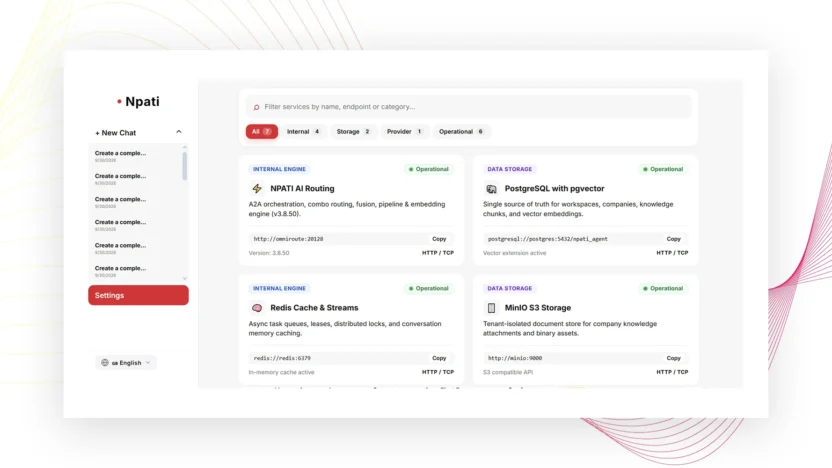
Connected Services in NPATI AI Agent is a diagnostic page for checking the health of internal services that the platform depends on. It can show the state of the model router, database, Redis, storage, crawler, core backend, and Hub so you can quickly identify whether a platform component is operational, degraded, down, or not configured.
Open Settings → Connected Services. This page is for diagnosis; it does not replace AI Provider configuration or messaging integrations and does not directly edit server configuration.
What Connected Services shows
The page reads service-health information from the Health API. Each service can report a status such as:
- Operational — the service reports normal operation.
- Degraded — the service is available but reports a problem or reduced condition.
- Down — the service is not operating normally.
- Not configured — the expected service or configuration is not set up.
Use these labels as diagnostic signals, then investigate the affected area rather than changing unrelated settings.
Services you may see
The described Health API can report the status of the model router, database, Redis, storage, crawler, core backend, and Hub. The exact state can change over time, so always use the current page rather than a screenshot or an old status report.
How to diagnose a service problem
- Open Connected Services.
- Review the summary and status labels.
- Use search or tabs to isolate the affected service.
- Select Refresh to request an updated health state.
- Copy the endpoint when you need to provide the exact service address for troubleshooting or support.
- Compare the service state with the feature that is failing.
Connected Services vs AI Providers
If an AI model is not available, do not assume Connected Services is the only place to fix it. Provider credentials, models, and routing are configured in AI Providers. Connected Services gives platform-health information; it is not the provider configuration screen.
Connected Services vs Integrations
Telegram, WhatsApp, Discord, and Slack connections are managed in Integrations. The health page can help identify broader service problems, but it does not replace channel tokens, pairing, webhooks, access rules, or reconnect actions.
What if the Health API is unavailable?
The interface can show a fallback state when the Health API itself is unavailable. A fallback display should not be treated as proof that every individual service is healthy. If the main health request cannot be completed, interpret the information cautiously and verify the relevant feature directly.
Use service health with run diagnostics
If an AI Company task fails and a related service also reports a problem, inspect the run in Activity & Run Trace. The trace can show the exact step, tool, and error while Connected Services provides the wider infrastructure context.
Common diagnostic mistakes
Treating a fallback display as a complete health check
If the Health API is unavailable, the fallback does not independently prove the state of each backend service.
Trying to configure integrations here
This is a diagnostic page. Use the dedicated AI Providers or Integrations pages for actual connection configuration.
Not refreshing after a change
Use Refresh when you need the latest reported service state.
Next steps
If the issue involves AI models, continue with AI Providers. For messaging, use Integrations. For a failed company execution, open Activity & Run Trace.
For the NPATI AI Agent project and installation resources, visit the GitHub repository.
FAQ
Can Connected Services change server configuration?
No. The described page is diagnostic and does not replace server configuration tools.
What does degraded mean?
It indicates that a service reports a problem or reduced condition rather than normal operation. Use the related feature and run diagnostics to understand the practical impact.