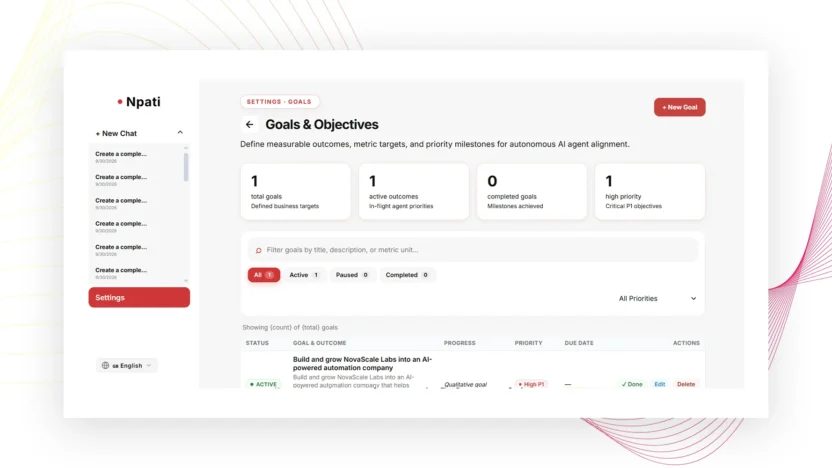
Business goals in NPATI AI Agent turn a broad objective into a structured target linked to a specific Business Profile. You can define the goal, priority, status, current value, target value, unit, and date, then update progress as the business changes.
Open Settings → Goals. Before creating anything, select the correct Business Profile because goals belong to the active business context.
Why use structured goals
A useful goal is easier to track when it includes a measurable target. Instead of storing only “grow sales,” the Goals workspace lets you record a current value, target value, unit, priority, status, and date. This creates context that can be reviewed alongside other business information.
If the business profile has not been created yet, start with the Business Profile guide.
How to create a business goal
- Open Goals.
- Select the correct Business Profile.
- Choose Create Goal.
- Enter a clear goal name.
- Add a description that explains what success means.
- Choose the priority.
- Select the appropriate status.
- Enter the current value.
- Enter a positive target value.
- Choose the unit.
- Set the relevant date.
- Select Save.
Goal fields explained
- Name: a concise description of the objective.
- Description: the business context and intended outcome.
- Priority: how important the goal is relative to others.
- Status: active, paused, completed, or cancelled.
- Current value: where the business is now.
- Target value: the measurable result you want to reach.
- Unit: the measurement used for the values.
- Date: the goal’s relevant target or tracking date.
Progress is calculated when the target value is positive. Use values and units that can be updated consistently.
Write goals that are useful to an AI workflow
Use a name and description that explain the business outcome without requiring hidden context. For example, “Increase qualified demo bookings” is more useful when the description defines what qualifies as a booking and the values use the same unit throughout.
Keep confirmed background information in Business Memory instead of stuffing unrelated facts into the goal description.
Manage goal status
A goal card can be edited, completed, restored, or deleted. Statuses include active, paused, completed, and cancelled. Use pause when the objective is still relevant but temporarily not being pursued. Use completed when the target or intended outcome is finished.
Search and filter goals
Search and status or priority filters change the list you see; they do not change the underlying goal itself. If a goal seems to disappear, clear filters before assuming it was deleted.
Example measurable goal
Suppose a business wants to grow monthly qualified leads from 20 to 50. The goal can store 20 as the current value, 50 as the target value, “qualified leads per month” as the unit, and an appropriate target date. As the business progresses, update the current value instead of creating a new goal every time.
Common goal setup mistakes
Creating a goal under the wrong business
Always check the Business Profile selector first.
Using a non-measurable target
If progress matters, choose a positive target value and a consistent unit.
Confusing filters with status changes
Filters only change the visible list. Edit the goal itself when you need to pause, complete, restore, or cancel it.
Next steps
Use Business Memory for confirmed facts that support the goal, connect the Business Profile to an AI Company for agent workflows, and use Automations when a recurring process should support the objective.
Explore the project in the NPATI AI Agent GitHub repository.
FAQ
Which business does a goal belong to?
A goal is saved to the Business Profile selected when you create or edit it.
Which statuses are available?
The described interface includes active, paused, completed, and cancelled statuses.