Finding products close to home can make buying and selling much easier. Instead of browsing listings from across the entire country, you can use Npati location pages to explore marketplace listings connected to your state, city, or local area.
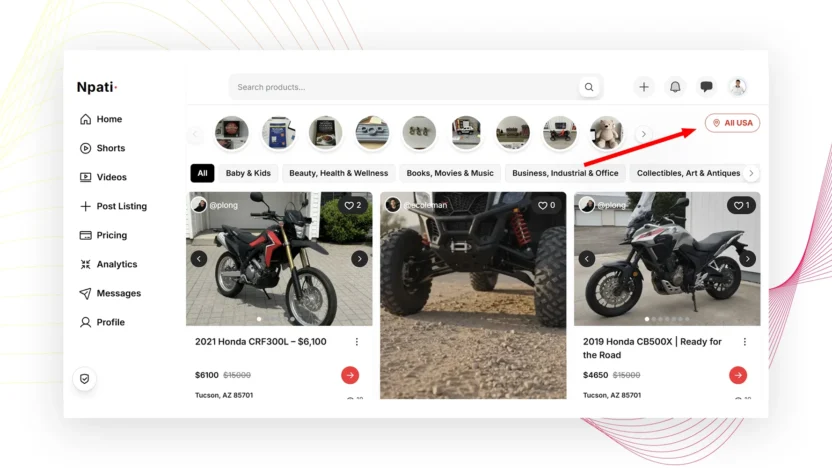
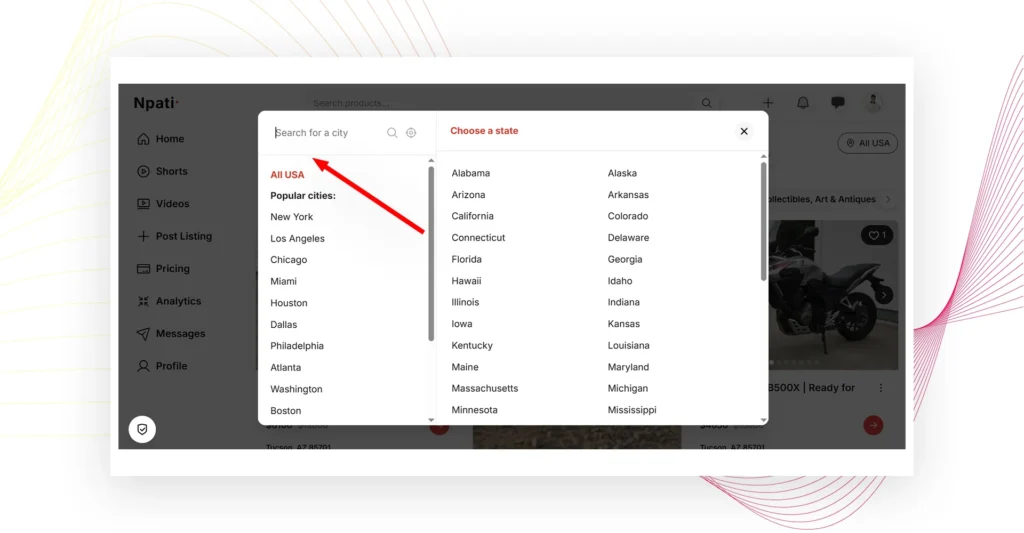
On Npati, you can browse local classifieds by selecting a location from the homepage. In the United States version of Npati, the location selector appears as All USA. From there, you can choose a popular city, select a state, browse cities inside that state, or use your current location when location access is available.
You can also combine a location with a marketplace category. For example, instead of viewing all listings in Los Angeles, you can open a category such as Electronics, Vehicles, Home & Garden, or Real Estate while keeping Los Angeles as your selected location.
This guide explains how to find local listings near you on Npati, how to browse by state or city, how location based category pages work, how to use your browser location, and what to do if location access is denied.
Quick Answer: How Do You Find Local Listings Near You on Npati?
To find local listings near you on Npati, open the Npati homepage and select the location control near the marketplace categories.
For users in the United States, this control normally displays:
All USA
Select it to open the location window.
From there, you can:
- Choose one of the popular cities.
- Select a US state.
- Browse cities connected to that state.
- Use your current location when browser location access is available.
- Open a marketplace category after selecting your location.
Once you choose a state or city, Npati opens a location specific marketplace page. The listings displayed there are associated with that geographic area.
For example, selecting California can take you to listings associated with California. Selecting a city can narrow the marketplace further.
Therefore, you do not need to search the entire United States when you mainly want items available locally.
What Are Local Listings on Npati?
A local listing is a marketplace listing associated with a particular geographic location.
Depending on the Npati market you are using, that location may include a state, province, region, city, town, or another supported geographic area.
For a United States listing, location information can include details such as:
- State
- City
- ZIP Code
- Seller location
Because location information is connected to marketplace listings, Npati can organize content into geographic pages.
For example, someone browsing in California can explore California listings. A buyer interested in something more specific can continue to a city and then combine that city with a product category.
This creates a simple path from a broad marketplace to more relevant local listings.
Where Is the Location Selector on Npati?
Start from the Npati USA marketplace.
Near the marketplace categories on the homepage, you will see the location selector.
For the United States version, it normally says:
All USA
The exact text depends on the regional version of Npati that you are using.
For example:
| Npati market | Location selector |
|---|---|
| United States | All USA |
| Canada | All Canada |
| United Kingdom | All United Kingdom |
| Ukraine | Вся Україна |
Therefore, do not worry if you do not see the exact words All USA. The location selector changes according to the country version of Npati.
The available states, provinces, regions, cities, categories, and other location options can also differ between markets.
How to Browse Local Listings With All USA
For users in the United States, select All USA on the Npati homepage.
A location window opens with several ways to browse.
You may see popular cities first, followed by the option to choose a state.
Popular cities can include places such as:
- New York
- Los Angeles
- Chicago
- Miami
- Houston
- Dallas
- Philadelphia
- Atlanta
- Washington
- Boston
- Phoenix
- Detroit
- Seattle
- San Francisco
- San Diego
If your city appears in the popular cities section, select it directly.
Otherwise, continue to the state list.
How to Find Listings by State
The Choose a state section lets you browse Npati marketplace content by US state.
For example, you could select:
- California
- Florida
- Texas
- New York
- Illinois
- Pennsylvania
- Ohio
- Georgia
- North Carolina
- Michigan
The location window also provides access to the other supported US states.
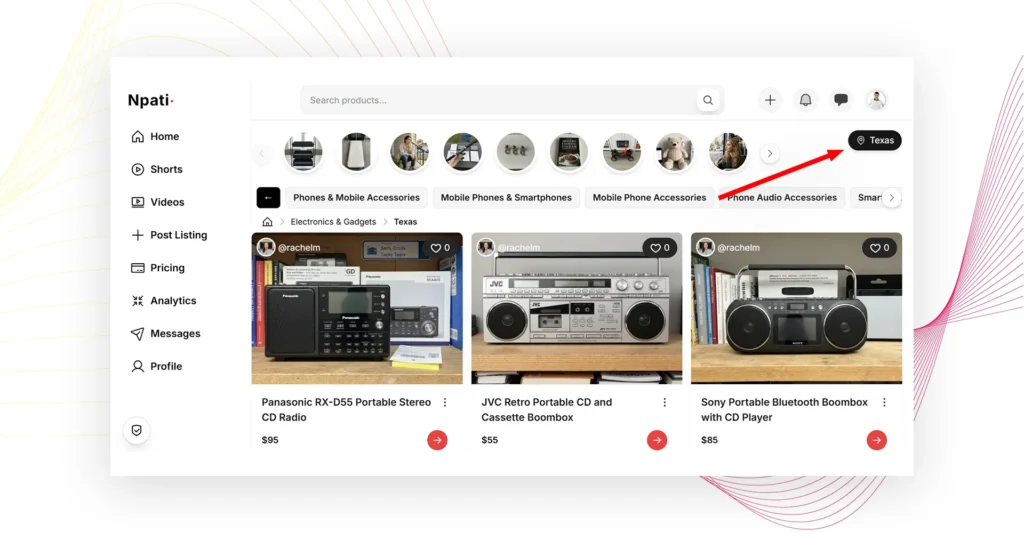
After selecting a state, Npati opens a page dedicated to that location.
For example, selecting California can open a page for:
Classifieds in California
Instead of starting with listings from the entire United States, you can now explore marketplace activity connected to California.
From there, you may continue browsing categories or move deeper into local city pages.
This approach is useful when you are willing to buy from anywhere within a state but do not want results from across the entire country.
How to Find Listings by City
If you want an even more local marketplace, choose a city.
You can start with one of the popular cities in the location window. Alternatively, select a state first and then browse the cities available within that state.
For example, someone looking for products in Southern California may select Los Angeles rather than browsing all California listings.
Meanwhile, a buyer in New York City can focus on New York instead of exploring listings throughout the entire state.
City pages are especially useful for items where distance matters.
Examples include:
- Furniture
- Cars
- Motorcycles
- Appliances
- Home improvement materials
- Local services
- Rental property
- Large electronics
- Free items
- Items available for local pickup
A local city page reduces the amount of unrelated marketplace content you need to review.
How to Browse a Category in Your City
Location is only one way to narrow the marketplace.
You can also combine your selected location with a category.
For example, imagine that you are searching for furniture in Los Angeles.
First, select Los Angeles as your location.
Next, choose a relevant marketplace category.
You can then continue into a more specific subcategory when available.
Instead of browsing every type of listing in Los Angeles, you could reach a page focused on something such as:
Tables in Los Angeles
That page combines two important pieces of information:
Product category + location
As a result, the marketplace becomes much easier to browse.
Similar combinations can be useful for searches such as:
- Electronics in New York
- Cars in Houston
- Furniture in Los Angeles
- Jobs in Chicago
- Services in Miami
- Real Estate in Dallas
- Home & Garden listings in Phoenix
- Sports equipment in Seattle
The exact categories available depend on the Npati market and marketplace structure.
Use Categories to Narrow Local Results
Once you have selected a location, use the marketplace categories to focus on the type of listing you want.
The United States marketplace includes categories covering areas such as:
- Baby & Kids
- Beauty, Health & Wellness
- Books, Movies & Music
- Business, Industrial & Office
- Collectibles, Art & Antiques
- Community & Local Events
- Electronics & Gadgets
- Fashion & Accessories
- Home, Garden & Tools
- Jobs & Gigs
- Local Services & Professional Help
- Pets & Pet Supplies
- Real Estate & Rentals
- Sports & Outdoors
- Vehicles & Auto Parts
For instance, someone looking for a used laptop may start with a city and then open Electronics & Gadgets.
On the other hand, someone searching for a local contractor can choose Local Services & Professional Help.
Combining location and category is often more useful than browsing thousands of unrelated marketplace listings.
Use Breadcrumbs to Move Between Locations and Categories
Location and category pages can include breadcrumb navigation near the top of the page.
Breadcrumbs show where you are inside the marketplace structure.
For example, your current page may represent a path from the main marketplace to a category and then to a local page.
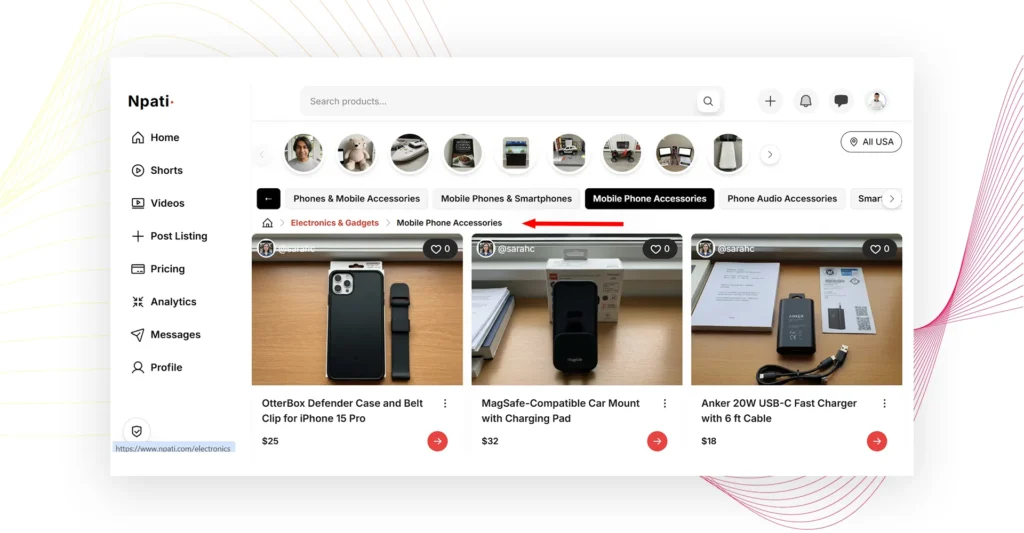
Instead of returning to the homepage every time you want to change your browsing level, use the breadcrumb links to move back through the marketplace structure.
For example, you may be able to move from a specific city category page back to:
- A broader category
- A location page
- A higher marketplace level
This is particularly helpful when comparing several related areas.
Suppose you are browsing tables in Los Angeles but decide that you want to see a broader selection of Home & Garden listings. Breadcrumb navigation can help you move back without starting your search from the beginning.
Local Browsing and Keyword Search Work Together
Npati provides more than one way to discover marketplace content.
Location browsing is useful when the geographic area is your priority.
Keyword search is useful when the product itself is your priority.
For example, if you know that you need an iPhone 14 Pro, you can use the Npati search field.
However, if your main goal is seeing what people are selling around Los Angeles, selecting Los Angeles first may be more useful.
You can also use both approaches during the same shopping session.
A simple workflow could look like this:
- Select your city.
- Browse a relevant category.
- Use search when you need a specific product.
- Open individual listings and compare the details.
- Contact the seller when you find something suitable.
For a complete explanation of keyword search, instant search, search results, price controls, Relevance, Trending, and Filters, read How to Search for Listings on Npati.
Video: How to Find Local Listings Near You on Npati
Watch the video below to see how location based browsing works on Npati.
[INSERT NPATI VIDEO EMBED HERE]
In the video, you can demonstrate:
- Where to find the All USA location selector.
- How to open the location window.
- How to choose a popular city.
- How to select a US state.
- How to continue from a state to a city.
- How to browse listings associated with that location.
- How breadcrumb navigation works.
- How to change marketplace categories.
- How to combine a category with a city.
- How to use your current browser location.
- What happens when browser location access is blocked.
After watching the video, continue below for more details about browser location access and regional Npati marketplaces.
How to Use Your Current Location on Npati
The location window can also provide an option that uses your current location.
This can be useful when you want to find local listings but do not want to manually select a state or city.
When you use this feature, your browser may ask for permission to access your location.
If permission is granted, Npati can use the location information available from your browser to help select the appropriate geographic area.
This is particularly convenient when you are traveling or using Npati from a location different from the one you normally browse.
However, location access is controlled by your browser and device settings.
What Does “Access Denied” Mean?
Sometimes you may see this message:
🔒 Access denied: Please allow the browser to access your location in settings.
This means that Npati cannot receive location information because your browser has not given the website permission to use it.
The marketplace itself can still be used.
Instead of using automatic location detection, you can manually choose your state or city from the location window.
If you want to enable automatic location access, open the site permissions or privacy settings in your browser and allow location access for Npati.
After changing the permission, return to Npati and reload the page if necessary.
Browser settings can vary, so the exact steps may be different in Chrome, Edge, Firefox, Safari, or a mobile browser.
You Can Still Browse Locally Without Sharing Your Location
Giving a website access to your current location is optional for local browsing.
If you prefer not to share browser location information, simply select your location manually.
For example:
All USA → California → Los Angeles
You can then browse the marketplace pages associated with that location.
Therefore, browser location permission is a convenience rather than the only way to find local listings.
Why Location Matters When Buying Locally
Distance can affect many marketplace decisions.
A buyer looking for a small product that can be shipped may be comfortable purchasing from another state.
However, location becomes much more important for larger products or services.
For example, local browsing can be particularly useful for:
Furniture
Shipping a sofa, dining table, desk, or dresser can be expensive. Consequently, finding a seller nearby may make local pickup much easier.
Vehicles
Cars, motorcycles, trucks, and other vehicles normally require more coordination than a small package. Browsing by city or state helps you focus on options in a practical travel area.
Real Estate
Property is naturally location specific. Selecting a city or region can therefore be an important first step when exploring real estate listings.
Local Services
Contractors, repair services, cleaners, tutors, and other local professionals normally serve specific geographic areas.
Jobs and Gigs
Many jobs require you to work in a certain city or region. Location browsing can help you focus on opportunities connected to your area.
Free Items
Items offered for free are often intended for local pickup. For that reason, nearby listings can be especially useful when browsing free products.
A Simple Example: Finding a Table Near You
Suppose you live in Los Angeles and want to find a used table.
You could begin by opening Npati USA.
Next, select All USA.
Choose Los Angeles from the available locations.
After the local page opens, select the appropriate Home & Garden category and continue to Tables when available.
You can then browse table listings associated with Los Angeles.
Once you find an interesting listing, open the complete listing page.
Review the:
- Price
- Description
- Product condition
- Photos
- Video, when available
- Seller information
- Location information
Afterward, you can contact the seller through the communication options available on Npati.
This process is often more efficient than searching through marketplace listings from the entire country.
A Second Example: Browsing Cars in Texas
Imagine that you are interested in buying a vehicle somewhere in Texas but are willing to travel between cities.
In this situation, start with All USA and select Texas.
The state page gives you a broader local view than selecting one city immediately.
From there, open Vehicles & Auto Parts.
If you later decide that distance matters more, narrow your browsing to a particular Texas city.
This approach lets you start broadly and then become more specific.
How Local Browsing Works in Other Npati Markets
Npati operates regional marketplace versions, so location names and geographic structures are not identical everywhere.
The basic idea remains similar.
Npati USA
Start at Npati USA.
The location selector normally appears as All USA.
Users can browse locations such as US states and cities.
Npati Canada
Open Npati Canada.
The location selector normally appears as All Canada.
Canadian marketplace pages use the geographic structure appropriate for Canada, including provinces, territories, and supported cities.
Npati United Kingdom
Open Npati United Kingdom.
The location selector normally appears as All United Kingdom.
Available location options follow the geographic structure used by the UK marketplace.
Npati Ukraine
Open Npati Ukraine.
The Ukrainian marketplace uses its own regional structure and local language interface.
As a result, the location selector, regions, cities, and categories differ from the United States version.
The important point is simple: always use the Npati marketplace for your country and then select the location relevant to you.
What Is the Difference Between All USA and a Local Page?
All USA represents the broad United States marketplace view.
A state page narrows that view to one state.
A city page narrows the geographic focus further.
Finally, combining a category and city can create an even more specific marketplace view.
For example:
All USA
becomes:
California
then:
Los Angeles
and can become something more specific such as:
Tables in Los Angeles
This structure lets buyers decide how broad or local they want their marketplace browsing to be.
Tips for Finding Better Local Listings
A few simple habits can make local marketplace browsing more effective.
Start With a Reasonable Area
If you are willing to drive across part of your state, do not narrow the marketplace too early.
Start with the state and then move to a city if necessary.
Choose the Right Category
A location alone can still contain many types of marketplace content.
Therefore, choose a relevant category after selecting your geographic area.
Search for the Exact Product When Necessary
If a category contains too many listings, use the Npati search field to look for the product by name, brand, model, or another useful term.
For example:
iPhone 14 Pro
Honda Civic
office desk
lawn mower
gaming PC
Open the Complete Listing
Do not make a decision based only on a listing card.
Instead, open the listing and check all available product information.
Review Photos Carefully
Clear product photos can reveal condition, wear, dimensions, included accessories, and other useful details.
Watch the Product Video
If the seller added a product video, watch it before contacting them. Video may show details that are difficult to understand from photos alone.
Check the Location
Before arranging pickup or contacting a seller, confirm that the listing location works for you.
Sellers: Why Your Listing Location Matters
Location browsing is useful for buyers, but sellers also play an important role.
When creating a marketplace listing, Npati uses location information associated with the listing.
Therefore, sellers should make sure their saved address and listing location information are correct.
If you plan to sell on Npati, read How to Add an Address to Your Npati Account.
Your saved address can then be used while creating marketplace listings.
Next, follow How to Create a Listing on Npati to learn how to add your title, category, description, photos, video, price, condition, location, and other listing information.
Correct location information helps connect marketplace content with the geographic structure used for local browsing.
How Buyers and Sellers Connect Through Local Listings
Local marketplace discovery is only the beginning.
Once a buyer finds an interesting listing, the next step is reviewing the product information and deciding whether to contact the seller.
A useful listing can include:
- A clear title
- An accurate description
- The correct category
- Product condition
- Price
- Photos
- Product video
- Location
- Seller information
For sellers, How to Write a Better Npati Listing explains how to create clearer marketplace content.
You can also learn How to Add Photos to a Npati Listing and How to Add Product Video to a Npati Listing if you want buyers to see the product in more detail.
Frequently Asked Questions About Local Listings on Npati
How do I find local listings near me on Npati?
Open Npati and select the location control on the homepage. In the United States version, it normally says All USA. Choose your state or city to browse marketplace listings associated with that area.
Can I search Npati listings by city?
Yes. You can select a supported city from the location interface and browse marketplace content connected to that city.
Can I browse Npati by state?
Yes. The United States version lets you select a US state and open a marketplace page for that geographic area.
Can I combine a city with a category?
Yes. Location and category navigation can be combined. For example, you can browse a specific product category within a selected city.
What does All USA mean on Npati?
All USA represents the broad United States marketplace location. Selecting it opens location options that let you narrow your browsing to a state or city.
Why does my Npati location button not say All USA?
Npati has different regional marketplace versions. Canada may display All Canada, the United Kingdom may display All United Kingdom, and Ukraine uses its corresponding Ukrainian location selector.
Does Npati have local classifieds?
Yes. Npati organizes marketplace listings by geographic areas such as states and cities, allowing users to browse local classifieds and local marketplace pages.
Can Npati use my current location?
Npati can use browser location access when that option is available and permission has been granted.
Why does Npati say location access is denied?
Your browser may be blocking location permission. You can allow location access in your browser settings or choose your state or city manually.
Do I have to share my browser location to browse local listings?
No. You can manually select a state or city without giving the browser permission to access your current location.
How can I find products for sale near me?
Select your local area first, then choose the appropriate marketplace category. If you need a specific item, use the Npati search field as well.
Can I browse local listings without creating an account?
Marketplace browsing and account requirements can depend on the action you want to perform. If you want to create your own listings and use account features, start with How to Create a Npati Account.
How do sellers add a location to a Npati listing?
Sellers first add an address to their Npati account. That saved location can then be selected during the listing creation process. Read How to Add an Address to Npati for the complete process.
Local Listings Checklist
When you want to find marketplace listings near you, use this simple checklist:
- Open the correct Npati marketplace for your country.
- Find the location selector.
- In the United States, select All USA.
- Choose a popular city or select a state.
- Narrow the location to a city when necessary.
- Select the marketplace category you want.
- Use breadcrumb navigation to move between marketplace levels.
- Use keyword search for a specific product.
- Open the complete listing before contacting the seller.
- Review the price, condition, photos, video, and location.
- Use browser location access if you want automatic location detection.
- Select your location manually if browser access is unavailable.
Continue Learning With Npati Guides
Finding local listings is one part of using the Npati marketplace.
For a complete explanation of keyword based marketplace search, read How to Search for Listings on Npati.
If you are completely new to the platform, begin with How to Create a Npati Account and then continue with How to Set Up Your Npati Profile.
Planning to sell something locally? Read How to Add an Address to Npati before continuing to How to Create a Listing on Npati.
Sellers can also improve their listings with How to Write a Better Npati Listing, How to Add Photos to a Npati Listing, and How to Add Product Video to a Npati Listing.
For more step by step tutorials, visit Npati Guides or explore the Npati Listings guides.
Start Finding Local Listings on Npati
Finding local listings on Npati does not require searching through the entire marketplace.
Start with the location selector, choose your state or city, and then narrow the marketplace with a relevant category.
For an even more specific search, combine local browsing with the Npati search field.
Whether you are looking for furniture in Los Angeles, electronics in New York, a vehicle in Texas, a service in Miami, or another product available nearby, location pages give you a simple way to explore marketplace listings connected to the area that matters to you.
Visit Npati, choose your location, and start exploring local listings near you.