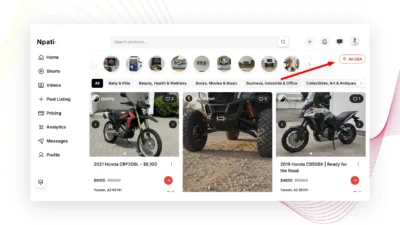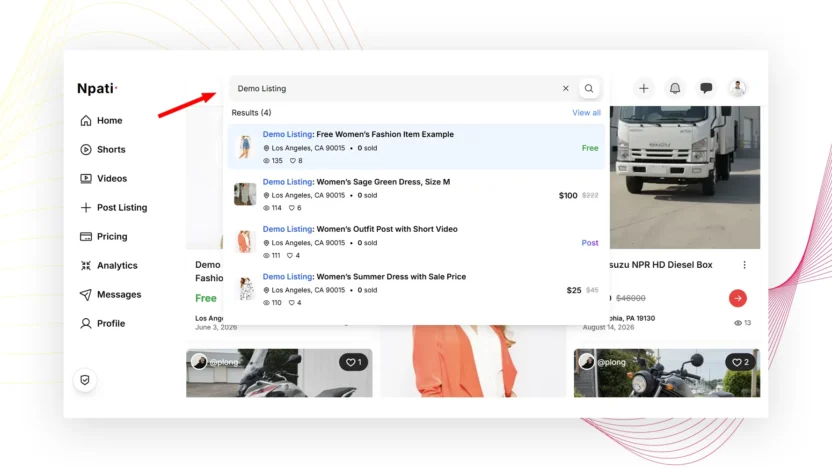
Finding something on Npati starts with the search bar at the top of the website.
You can search for a product, marketplace listing, video or Short by entering words that describe what you want to find. As you type, Npati can show a short set of matching results directly inside the search panel.
For a more complete search, press Enter. Npati then opens the full search results page, where you can explore matching Listings, Videos and Shorts and use additional search controls.
This guide explains how to search for listings on Npati, how instant search works, what appears on the full results page, and how to use options such as price range, Free, Relevance, Trending and Filters.
If you are new to the platform, you can also start with How to Create a Npati Account.
Quick Answer: How Do You Search for Listings on Npati?
To search for a listing on Npati, open the Npati website for your market and find the search bar at the top of the page.
Next, type a keyword that describes the item you want.
For example, you could search for:
iPhone 14 Pro
As you type, Npati displays a short selection of matching results in the search panel.
If one of those results is what you need, select it directly.
Otherwise, press Enter to open the full Npati search page.
From there, you can browse matching Listings, Videos and Shorts and refine the results with the available search tools.
Where Is the Npati Search Bar?
The main Npati search field is located near the top of the website.
Because Npati operates in different markets, the exact website URL you use can depend on your region. However, the general search process is similar.
For users in the United States, start from the main Npati website and look for the search field at the top of the page.
You do not need to begin by opening a marketplace category.
Instead, enter the product or topic directly into search.
For example:
used laptop
Honda Civic
office desk
lawn mower
iPhone 14 Pro
sofa
Using specific words usually gives Npati more context about what you want to find.
Start With a Simple Search Keyword
A good Npati search does not need to be complicated.
Start with the most important word or phrase.
For example, if you want an iPhone, you could begin with:
iPhone
However, if you already know the exact model, a more specific search may be more useful:
iPhone 14 Pro
Similarly, someone looking for a vehicle could search:
Honda Civic
instead of using only:
car
The additional detail helps describe your intent more clearly.
Therefore, begin broadly when you want to explore, or use a more specific phrase when you already know what you need.
How Instant Search Works on Npati
One useful part of Npati search appears before you even open the full search results page.
As you enter your keyword, a short set of results can appear directly in the search panel.
This makes it possible to find something quickly without leaving the page you are currently viewing.
For example, start typing:
iPhone
Matching content can begin appearing underneath or within the search area.
If you recognize the result you want, simply select it.
On the other hand, you may want to compare several items or explore everything related to the query. In that case, press Enter to continue to the full results page.
Press Enter for Full Npati Search Results
The instant search panel is designed for quick discovery.
However, the complete search page provides a wider view of matching content.
After entering your keyword, press Enter.
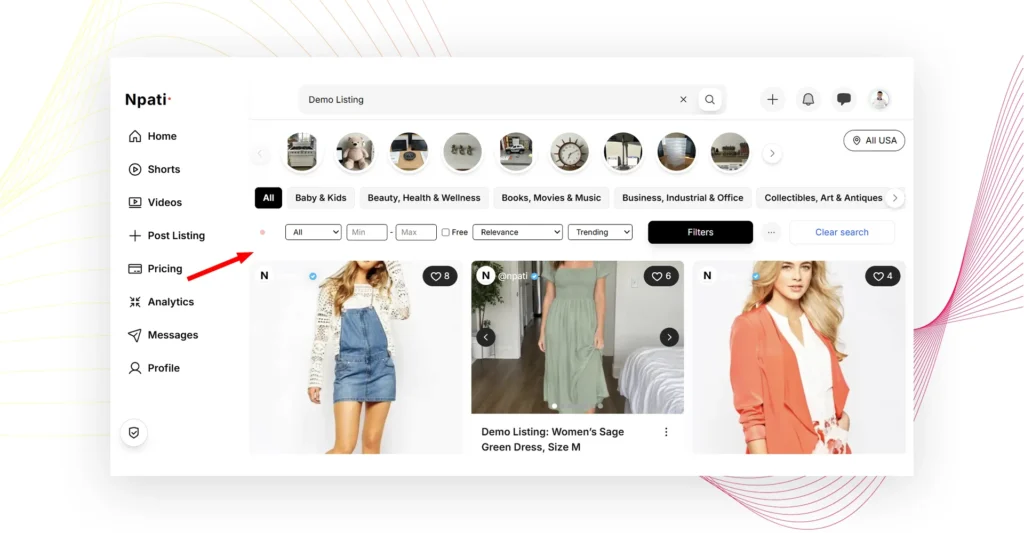
Npati will open the search results page for that query.
From there, you can review more results and use additional search controls.
Most importantly, the results are not limited to traditional marketplace listings.
Npati search can bring together several types of content.
What Appears in Npati Search Results?
Npati combines marketplace and social content, so the search page can display:
Listings
These are marketplace listings created by sellers and other Npati users.
Videos
Standalone Npati Videos can also appear when they are relevant to the search.
Shorts
Short form Npati content may appear in the results as well.
Consequently, one search can help you discover a product for sale and related visual content without requiring a separate search system for every content format.
This is an important difference to understand when using Npati search.
Listings, Videos and Shorts Are Different Types of Results
Although all three content types can appear in search, they do not serve exactly the same purpose.
A Listing is marketplace content. It can contain information such as a title, description, photos, video, condition, price and location.
A Video is standalone video content published on Npati.
Meanwhile, a Short is standalone short form video content.
Therefore, when you search for a term such as:
iPhone
you may discover an iPhone that someone is selling, a regular video related to an iPhone, or a Short showing similar content.
Review the result type before opening it so you know what you are viewing.
Video: How to Search for Listings on Npati
The video below shows the complete Npati search process step by step.
[INSERT NPATI VIDEO EMBED HERE]
In the video, you can demonstrate:
- Where to find the search bar.
- How instant search results appear while typing.
- How to press Enter to open the complete search page.
- How Listings, Videos and Shorts appear in search.
- How to use Min and Max price controls.
- How to find Free items.
- How to switch between Relevance and Trending.
- How to open Filters.
- How to clear the current search.
After watching the video, continue below for a detailed explanation of each search option.
How to Search for a Specific Product
The more you know about an item, the more specific your query can be.
For example, instead of searching:
phone
try:
iPhone 14 Pro
If storage capacity matters, you could search using more detail:
iPhone 14 Pro 128GB
Likewise, a furniture search could move from:
desk
to:
wood office desk
A more specific phrase can reduce unrelated results and make the search easier to review.
However, broader queries can still be useful when you want to compare different options.
Search by Brand and Model
Brand and model names are especially useful for electronics, vehicles, tools and other products with recognizable model numbers.
For example:
Apple iPhone 14 Pro
Samsung Galaxy S24
Honda Civic
DeWalt drill
Sony camera
This type of search gives Npati a clearer description of the item you want.
Additionally, model information can help distinguish between similar products from the same brand.
Search by Product Type
Sometimes you do not know the exact brand or model.
In that situation, search by product type.
For example:
gaming laptop
office chair
mountain bike
coffee table
lawn mower
camera lens
This approach is useful when you want to browse and compare several options rather than locate one exact model.
Afterward, you can use the search page controls to narrow the available results.
Search for Used Items
If condition is important to you, include it naturally in your search phrase when appropriate.
For example:
used iPhone
used office desk
used camera
used motorcycle
This provides additional context about what you are looking for.
Nevertheless, always open the individual listing and review its actual condition information before making a decision.
A title or search result is only a starting point.
Use the All Option
The full search page includes an All option.
Use All when you want to see the broader set of content connected to your search instead of narrowing your view too early.
For example, searching for iPhone with All selected can help you explore available content around that keyword.
From there, you can decide whether a marketplace listing, Video or Short is most useful.
This is a good starting point when you are still exploring.
Set a Minimum Price With Min
When you are looking for a marketplace item within a particular budget, the Min field helps define the lowest price you want to consider.
For example, suppose you are shopping for a laptop and only want to review options starting around a certain price.
Enter that amount into Min.
This can make the results easier to review when very low priced items are not relevant to your search.
However, remember that price controls are primarily useful when evaluating marketplace listings.
Set a Maximum Price With Max
The Max field helps limit how much you want to spend.
For example, if your budget for a used smartphone is $500, enter:
500
as your maximum price.
The search page can then help you focus on marketplace results that fit the selected price range.
You can also combine Min and Max.
For example:
Min: $200
Max: $500
Using both values creates a more specific shopping range.
Search for Free Items on Npati
Npati search also includes a Free option.
Use it when you specifically want to look for items offered for free rather than priced marketplace listings.
This can be useful for many types of local items.
For example, people may offer furniture, household items or other products at no cost when they no longer need them.
If price is your main priority, checking Free can quickly narrow your marketplace search.
What Does Relevance Mean in Npati Search?
The search page includes a Relevance option.
Use Relevance when you want the results organized around the search you entered.
For example, if your query is:
iPhone 14 Pro
Relevance is the natural starting point when your priority is finding content that closely relates to that search phrase.
Generally, this is a useful default when looking for a particular item.
After reviewing those results, you can try another available search mode if you want a different way to explore content.
What Is Trending in Npati Search?
Npati also provides a Trending option.
Trending gives you another way to explore search results beyond the standard relevance based view.
This can be useful when you are interested in content receiving attention around the topic you searched for.
For instance, you might first search for a broad product category and then explore Trending to discover content around that subject.
By comparison, Relevance is usually the more direct choice when your main goal is finding something that matches a specific keyword.
How to Use Filters on Npati
The full search page includes a Filters control.
Open Filters when you want additional ways to narrow or organize the results available for your current search.
Filters are especially helpful when a broad keyword returns more content than you want to review manually.
For example, begin with:
laptop
Then use the available search controls to focus the result set.
Instead of entering many keywords into one long search phrase, combining a clear query with the available filters can make browsing easier.
What Is the Three Dot Menu?
You may also see a three dot menu on the search interface.
Select it when you want to review the additional options currently available for that search view.
Because interface controls can evolve over time, review the options shown in the menu before choosing an action.
The three dots are useful when an additional control does not need to remain visible on the main search bar at all times.
How to Clear a Npati Search
When you are finished with one query and want to start again, use Clear search.
This removes the current search so you can begin with another keyword.
For example, suppose you searched:
iPhone 14 Pro
but now want to look for:
MacBook Air
Instead of manually removing every search setting, use Clear search when appropriate and begin a new query.
This is particularly useful after you have applied several search options.
A Simple Npati Search Example
Imagine that you want to buy a used iPhone.
First, open Npati and enter:
iPhone
Instant results may appear immediately.
However, you want more options, so press Enter.
Once the complete search page opens, review the Listings, Videos and Shorts related to your query.
Next, refine the search to:
iPhone 14 Pro
If you have a specific budget, enter your Min and Max values.
Afterward, leave Relevance selected when your main priority is finding close matches.
You can then open promising marketplace listings and compare their descriptions, photos, videos, prices and condition information.
This workflow moves from broad discovery to a more focused search.
Search Example: Finding a Used Sofa
Suppose you are looking for furniture.
Begin with:
sofa
If too many unrelated options appear, make the query more descriptive:
used sofa
or:
gray sofa
Next, press Enter to open the complete results page.
Use your preferred price range if necessary.
Additionally, review the photos and listing information carefully before contacting the seller.
A good marketplace search is not only about finding the cheapest result. It is also about finding the item that best matches your needs.
Search Example: Finding a Vehicle
Vehicle searches often benefit from brand, model and year information.
For example:
2020 Honda Civic
is more specific than:
car
If you are still comparing several models, start more broadly with:
Honda
or:
used SUV
Afterward, use the available search controls to narrow your results.
Finally, open individual listings to review the complete vehicle information provided by the seller.
Search Example: Finding Free Items
Sometimes your only requirement is that the item is free.
Start with a relevant product keyword, such as:
desk
Then open the full results page and select Free.
This approach can help you focus on matching items offered without a normal sale price.
If nothing suitable appears, try a broader keyword.
For instance, furniture may provide more options than a very specific product phrase.
Why Search Can Show Videos and Shorts
Npati combines marketplace functionality with video content.
Therefore, a search does not have to end with traditional marketplace cards.
Videos and Shorts can provide additional visual information around the topic.
For example, a search for a particular smartphone model could reveal marketplace offers as well as videos showing that type of device.
This creates another way to discover content before deciding what to open.
If you want to publish short form content yourself, read How to Upload a Short Video on Npati.
How Search Relates to Marketplace Listings
Search quality also depends on the information sellers provide.
Clear titles, useful descriptions, relevant categories and accurate product details make marketplace content easier to understand.
For example, a listing titled:
Apple iPhone 14 Pro 128GB Midnight
provides much more context than:
Phone for sale
If you sell on Npati, read How to Write a Better Npati Listing to learn how to improve your own marketplace content.
Meanwhile, buyers benefit from using those same descriptive terms in search.
Search Terms Buyers Can Use on Npati
A good search phrase usually contains the information that matters most to you.
Useful details may include a product type, brand, model, size, color or another defining feature.
For example:
iPhone 14 Pro 128GB
wood dining table
women's running shoes size 8
Honda motorcycle
gaming PC
used lawn mower
However, avoid making your first query unnecessarily complicated.
Begin with the strongest identifying terms and refine the search only when needed.
Try a Broader Search if You Find Nothing
An overly specific query can sometimes narrow your options too much.
Suppose you search:
black iPhone 14 Pro 128GB unlocked
and do not see what you need.
Try simplifying the query to:
iPhone 14 Pro
If necessary, broaden it again:
iPhone
This strategy allows you to see related options that may have been described differently by the seller.
In addition, product titles do not always use exactly the same words that a buyer expects.
Try a More Specific Search if You See Too Much
The opposite problem can also happen.
Searching:
phone
may produce many different products and related videos.
In that situation, add useful identifying information:
iPhone
then:
iPhone 14
and finally:
iPhone 14 Pro
Each additional relevant term makes your intent more specific.
Consequently, reviewing the results can become easier.
Check the Full Listing Before Contacting a Seller
Search results help you discover content, but they do not replace the full listing.
Once you find an item that interests you, open its marketplace page.
Review the complete title and description.
Next, check the price and condition.
Look through all available product photos as well.
If a video is included, watch it when it provides useful information about the item.
Finally, review the seller information and contact options available on Npati.
This gives you more context than relying only on the search card.
Use Product Photos to Evaluate Search Results
Photos can help you decide whether an item is worth opening or contacting the seller about.
Look for clear images showing the actual product from several useful angles.
For used items, inspect visible wear and condition details.
If you also sell products on Npati, the guide How to Add Photos to a Npati Listing explains how marketplace photos are added and organized.
Better product information benefits both sides of marketplace search.
Sellers explain their items more clearly, while buyers can compare results more effectively.
Watch Listing Videos When Available
Some marketplace listings include product video.
A video can provide information that is difficult to communicate with one photograph.
For example, you may be able to see an electronic device operating or view a product from several angles.
Therefore, when a relevant listing contains video, consider watching it before contacting the seller.
Sellers who want to add this type of media can follow How to Add Product Video to a Npati Listing.
Search Npati Before Creating Your Own Listing
Search is also useful for sellers.
Before creating an advertisement, search for products similar to yours.
For example, if you plan to sell an iPhone 14 Pro, search for that model first.
You can then see how similar items are described and presented on the marketplace.
However, do not copy another seller’s title or description.
Instead, use your research to understand what information buyers may need, then create an original listing for your actual item.
If you are ready to sell, follow How to Create a Listing on Npati.
Create Better Listings That Are Easier to Understand
Search and listing quality are closely connected.
A seller should accurately describe the product so potential buyers know what the listing contains.
A useful title can include the product name, brand, model or another important detail.
Likewise, a clear description provides additional context.
Photos and video can then support the written information.
For a complete optimization guide, see How to Write a Better Npati Listing.
Frequently Asked Questions About Npati Search
How do I search for listings on Npati?
Use the search bar at the top of the Npati website. Enter a keyword, review the instant suggestions, or press Enter to open the complete search results page.
Does Npati show search results while I type?
Yes. A short selection of matching results can appear directly in the search panel as you enter your query.
What happens when I press Enter?
Pressing Enter opens the full search results page, where you can browse more matching content and use the available search controls.
Does Npati search only marketplace listings?
No. The search page can display Listings, Videos and Shorts related to the search query.
Can I search Npati by product name?
Yes. For example, you can enter a product phrase such as iPhone 14 Pro, office desk or lawn mower.
Can I search by brand and model?
Yes. Adding a brand or model can make a search more specific when that information matters.
Can I set a minimum price?
Yes. Use Min when you want to define a lower price for your marketplace search.
Can I set a maximum price?
Yes. Use Max to define the highest price you want to consider.
Can I use Min and Max together?
Yes. Using both controls allows you to create a price range for priced marketplace results.
Can I search for free items on Npati?
Yes. Use the Free option when you want to focus on items offered for free.
What does Relevance do?
Relevance is useful when you want to focus on results connected to the search phrase you entered.
What is Trending?
Trending provides another way to explore content around your search instead of relying only on the standard relevance based view.
What is the Filters button?
Filters opens additional search controls that can help you refine the results.
How do I remove my current Npati search?
Use Clear search when you want to remove the current search and begin again.
Can Npati search show Videos?
Yes. Standalone Npati Videos may appear alongside other relevant content.
Can Npati search show Shorts?
Yes. Npati Shorts can also appear in search results when they are connected to the topic.
Do I need an exact product name to search?
No. You can begin with a general product type and make the query more specific later.
What should I do if there are too many results?
Add more relevant information to your search phrase or use the available search controls and filters.
What should I do if there are no useful results?
Try removing unnecessary words and searching for a broader version of the product name.
Npati Search Checklist
Before giving up on a search, check these points:
- Start with a clear product or topic keyword.
- Review the instant search suggestions.
- Press Enter for the complete search results page.
- Check whether the result is a Listing, Video or Short.
- Add brand or model details when necessary.
- Use Min and Max for a specific marketplace budget.
- Select Free when you want free items.
- Try Relevance for a direct product search.
- Explore Trending when you want another discovery view.
- Open Filters when you need additional controls.
- Broaden the keyword if the search is too specific.
- Make the keyword more specific if there are too many results.
- Open the complete listing before contacting a seller.
Continue Learning With Npati Guides
Searching is one part of using the Npati marketplace.
If you are new to the platform, begin with How to Create a Npati Account.
Afterward, learn How to Set Up Your Npati Profile.
If you want to start selling, continue with How to Add an Address to Npati and How to Create a Listing on Npati.
Sellers can improve their marketplace content with How to Write a Better Npati Listing.
For visual content, read How to Add Photos to a Npati Listing and How to Add Product Video to a Npati Listing.
You can also learn How to Upload a Short Video on Npati if you want to publish standalone short form video content.
Finally, visit Npati Guides for more step by step tutorials.
Start Searching on Npati
Searching on Npati begins with a simple keyword.
Type the name of a product, brand, model or topic into the search bar at the top of the website.
Instant results can help you find something immediately. However, pressing Enter opens the full search page when you need more options.
From there, Npati can bring together marketplace Listings, Videos and Shorts related to your search.
Price controls can help narrow marketplace results, while Free lets you focus on items offered at no cost. Relevance provides a direct way to explore matches, and Trending gives you another discovery option.
If the results are too broad, make your query more specific. On the other hand, simplify the phrase when your original search is too narrow.
Most importantly, use search as the beginning of your research.
Open the complete listing, review the description, price, condition, photos and video, and make sure the item matches what you are looking for before contacting the seller.