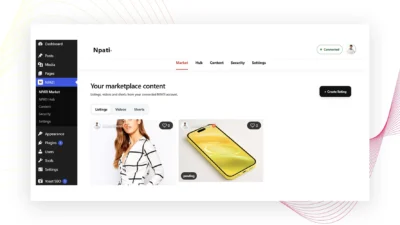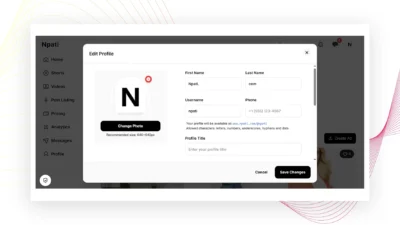
Sometimes a marketplace listing needs a small correction. Maybe the description is no longer accurate, you want to replace a product photo, your contact information has changed, or you simply want to add more useful details for buyers.
You do not need to create the entire listing again.
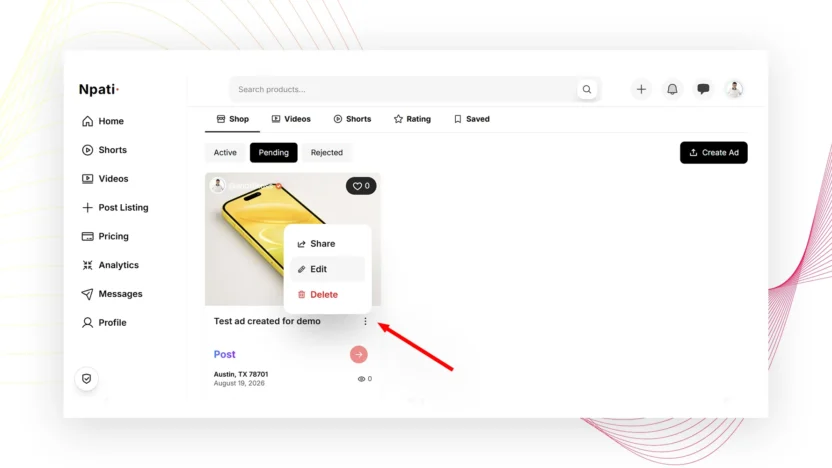
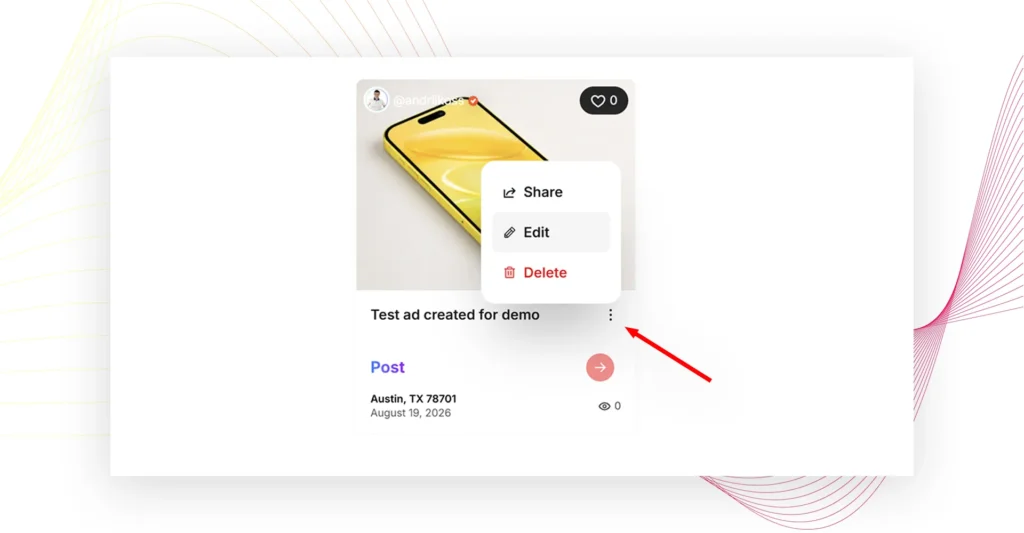
Npati lets you edit an existing listing from your profile. Open the three dot menu next to the listing, select the option to edit it, make your changes on the Edit Product page, and then select Save Changes.
Most listing information can be updated. However, the listing link and category cannot be changed from the Edit Product page.
In addition, some updates may require the listing to go through moderation again. This can happen when you make many changes or significantly change the content of an existing listing.
This guide explains how to edit or update a Npati listing, which fields you can change, which information stays fixed, how to update photos and video, and what happens after you save major changes.
Quick Answer: How Do You Edit a Npati Listing?
To edit an existing Npati listing:
- Sign in to your Npati account.
- Open your profile.
- Find the listing you want to change.
- Select the three dots next to the listing.
- Choose the option to Edit the listing.
- Wait for the Edit Product page to open.
- Update the information you want to change.
- Review the edited listing.
- Select Save Changes.
Your updated information will then be saved.
However, remember that the listing category and listing link cannot be changed from the Edit Product page.
Additionally, substantial changes may cause the listing to enter moderation again before it continues through the normal listing process.
When Should You Update a Npati Listing?
There are many reasons to edit a marketplace listing after publishing it.
For example, you may want to:
- Correct a typo in the title.
- Rewrite part of the product description.
- Add more product details.
- Replace an outdated photo.
- Upload better product photos.
- Remove photos that are no longer useful.
- Add or replace a product video.
- Change the video thumbnail.
- Update the product condition.
- Select another saved address.
- Change your phone number.
- Update your contact email.
- Add better product tags.
- Change shipping information.
- Update product size information.
- Change the way author information is displayed.
- Change other editable listing settings.
Keeping your marketplace information current makes the listing more useful to potential buyers.
For instance, suppose you originally wrote a short description and later realized that buyers need measurements. Instead of creating another listing, open the existing product and add the missing measurements.
Likewise, if your first photos do not clearly show the condition of the item, replacing them with better images may give buyers more useful information.
Before Editing: Know the Difference Between Creating and Updating
Editing an existing listing is different from creating a new one.
When you first create a product, you choose its basic marketplace information and publish it for the first time.
If you need help with that initial process, read How to Create a Listing on Npati.
The Edit Product page is designed for an item that already exists.
Therefore, much of the information you previously entered is already available when the page opens.
You do not have to start from an empty form.
Instead, review the existing information and change only what needs to be updated.
Step 1: Open Your Npati Profile
First, sign in to Npati and open your profile.
Your profile contains your published marketplace content and gives you access to management options for your own listings.
If you are still setting up your account, you can read How to Set Up Your Npati Profile before creating and managing marketplace content.
Once your profile is open, find the listing you want to edit.
Take a moment to confirm that you selected the correct item, especially if you have several similar products.
Step 2: Find the Three Dot Menu
Each of your listings has additional management options available through the three dot menu.
Look for the three dots next to the listing you want to update.
Select them to open the available actions.
The menu gives you access to additional controls without placing every management button directly on the listing card.
From this menu, choose the option for editing the listing.
Npati will then open the Edit Product page.
Step 3: Open the Edit Product Page
Once you select the edit option, you will see the existing listing information inside the editing form.
The page begins with:
Edit Product
Instead of empty fields, the form contains information that was already saved with your product.
For example, you may see an existing title and description such as:
Title
Test ad created for demo
Product Description
Test ad created for demo
You can now update the editable parts of the listing.
Because the previous content remains available, editing is usually faster than building a new product from the beginning.
What Can You Edit on a Npati Listing?
Most information on the Edit Product page can be changed.
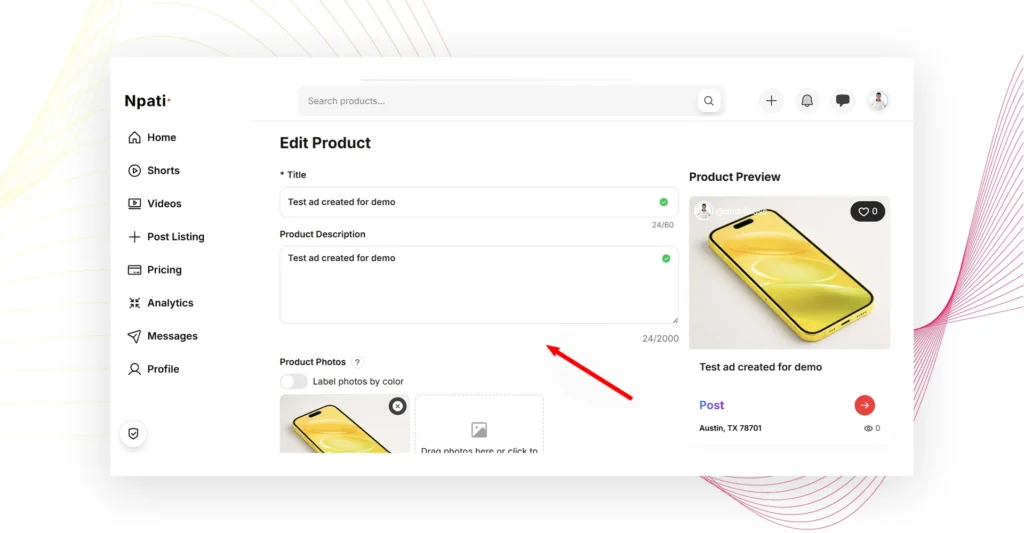
Depending on the existing listing and its configuration, the page can include controls for:
- Title
- Product Description
- Product Photos
- Photo color labels
- Video
- Video thumbnail
- Show Author
- Disable Buy
- Post mode
- Product sizes
- Location Address
- Product Condition
- Phone
- Tags
- Shipping
- Other editable product settings
Therefore, you can make small corrections or perform a more complete update from the same page.
However, two important parts are not editable there:
Category
and:
Listing link
We will explain this limitation in more detail below.
How to Edit the Listing Title
The Title field appears near the top of the Edit Product page.
Your existing title is already displayed, so simply click inside the field and edit the text.
A Npati listing title can contain up to 60 characters.
The counter may appear in a format such as:
24/60
This tells you how many characters are currently being used.
When changing your title, keep it specific and easy to understand.
For example, a title such as:
iPhone for sale
provides less information than:
Apple iPhone 14 Pro 128GB
Likewise:
Chair
is less descriptive than:
Ergonomic Office Chair With Headrest
The goal is not to fill every available character. Instead, give buyers enough information to understand the product quickly.
If you are unsure how to improve your title and description, see How to Write a Better Npati Listing.
How to Update the Product Description
Below the title, you can edit:
Product Description
The existing description remains visible.
A description can contain up to 2,000 characters, so you have room to explain the item in useful detail.
You may want to update the description when:
- Product information has changed.
- You forgot an important detail.
- Buyers keep asking the same question.
- You want to disclose additional wear or damage.
- Measurements were missing.
- Included accessories have changed.
- The original description was too short.
- You want to make the information easier to read.
For example, imagine that you are selling a used laptop.
Your first description may have said:
Used laptop in good condition.
Later, you could improve it by adding:
- Model
- Storage capacity
- Memory
- Screen size
- Battery information
- Included charger
- Visible scratches
- Other important details
As a result, buyers receive more useful information before contacting you.
Keep the description accurate. Updating a listing is an opportunity to improve clarity, not to add unrelated keywords.
How to Update Product Photos
The Edit Product page includes a:
Product Photos
section.
Existing product photos can be managed from this area.
You can add new images, replace images when needed, or remove photos that no longer represent the item properly.
Supported image formats include:
- PNG
- JPG
- GIF
- WEBP
The upload area may display:
Drag photos here or click to select
Therefore, you can either drag files into the upload area or select images from your device.
You may also see an option such as:
Remove all photos
Use photo removal carefully. Before saving the listing, make sure the remaining media still shows the item clearly.
For a detailed guide to marketplace images, read How to Add Photos to a Npati Listing.
When Should You Replace Listing Photos?
You do not need to change photos simply because you are editing the listing.
However, new images can be useful when the existing ones no longer provide an accurate view of the product.
Consider replacing or adding photos when:
- The original image is blurry.
- Lighting is poor.
- An important angle is missing.
- Product condition has changed.
- Additional damage needs to be shown.
- Included accessories have changed.
- You can now provide a clearer close up.
- The current photos no longer accurately represent the item.
For used products, accurate photos are especially important.
If a scratch appeared after the original listing was published, update both the image and description when appropriate.
That way, the visual information and written information remain consistent.
How to Use Label Photos by Color While Editing
The photo section can include:
Label photos by color
This option is useful when a listing contains different colors or product variants.
For example, if several photos represent different product colors, you can associate the appropriate information with each photo where the feature is available.
If you update those images later, review their labels as well.
Replacing a product photo without checking the associated color information could leave outdated information in the listing.
Therefore, verify both the image and its related settings before saving.
How to Update a Product Video
The Edit Product page also includes:
Video and Thumbnail
From this section, you can manage video content connected to your product.
The interface may display:
Click to upload video (up to 2GB)
Npati supports MP4 for the product video shown in this form, with a maximum file size of 2 GB.
Updating the video can be useful if:
- The old video no longer represents the product.
- You recorded a clearer demonstration.
- You want to show an item working.
- Additional condition details need to be visible.
- The previous video was incomplete.
- You want buyers to see the product from better angles.
A marketplace video should help buyers understand the item.
For example, a seller could demonstrate that an electronic device powers on. Meanwhile, someone selling furniture may use video to show the item from several angles.
For more information, read How to Add Product Video to a Npati Listing.
How to Change the Video Thumbnail
Near the video upload area, you can also manage the:
Thumbnail
The interface may show:
Click to upload thumbnail
A thumbnail represents the video before a user starts watching it.
Therefore, choose an image that clearly shows the product or the main subject of the video.
If your existing thumbnail is unclear, updating it may make the video easier to understand at a glance.
However, avoid using a thumbnail that misrepresents what appears in the video.
The image should match the actual product and content.
How to Update Show Author
The Edit Product page can include:
Show Author
with a status such as:
Enabled
This setting controls the related author display option for the listing.
If you want to change that setting, review its current status and select the option you prefer.
Before making the change, consider how you want your listing to connect with your Npati profile.
For sellers who actively use their public profile, author information can help buyers understand who published the content.
How to Update Disable Buy
Another available setting may be:
Disable Buy
For example, the current status could show:
Disabled
Review this option based on how you want the listing to function.
Because buying behavior can differ between different types of marketplace content, check the current setting rather than changing it automatically.
When editing, your goal should be to preserve the intended purpose of the listing unless you deliberately want to update it.
How to Edit a Post Without Price or Buy Now
Npati can also support content configured as:
Post (No price, no Buy Now)
When this option is enabled, the content behaves as a post rather than a normal priced marketplace product.
The editing form may explain:
When enabled, this will be a post without price and purchase button
If you are updating this type of content, confirm that Post mode still matches what you want to publish.
For example, a community style post may not need a price or purchase option.
On the other hand, a normal product intended for sale should use the appropriate marketplace configuration.
Review the setting carefully before selecting Save Changes.
How to Edit Product Sizes
Some products need size information.
The editing page can include:
Add sizes to product
with an enabled or disabled state.
Sizes may be useful for:
- Clothing
- Shoes
- Furniture
- Equipment
- Products with multiple measurements
- Other size dependent items
If your available sizes change, update the listing.
For example, suppose you originally offered three sizes but one is no longer available. The listing should reflect the current options rather than continue showing outdated information.
Accurate size details can also reduce unnecessary questions from buyers.
How to Change the Location Address
A Npati listing includes:
Location Address
Your current saved location may appear in a format similar to:
Demo Demo - Austin, TX (Home)
If the editable address needs to be updated, choose the appropriate saved location available to you.
Location information matters because buyers may care about where an item is available, particularly for:
- Furniture
- Vehicles
- Large appliances
- Local pickup
- Real estate
- Services
- Other location dependent products
If you need help setting up addresses in your account, read How to Add an Address to Npati.
Buyers can also discover content geographically, which is explained in How to Find Local Listings Near You on Npati.
Therefore, check your location carefully before saving changes.
How to Update Product Condition
The editing page contains:
Product Condition
An existing listing may currently show a condition such as:
New
If the product condition is no longer accurate, update it.
This can be particularly important for a listing that has remained active for a longer period.
For example, an item originally listed as new may have been opened or used later.
In that situation, keeping the old condition could give buyers the wrong impression.
Always choose the option that best represents the item’s current condition.
How to Update Your Phone Number
The form can include a:
Phone
field.
For example:
+1 (512) 555-0147
If your contact number has changed, update it before saving the listing.
In addition, check the number carefully for typing mistakes.
An incorrect contact number can make communication harder for interested buyers.
Even a small mistake in one digit may prevent someone from reaching you.
How to Change the Contact Email
You may also see an:
field.
For example:
Review the email address and make sure it is still correct.
If you want to use another appropriate email address for the listing, edit the field where the form allows it.
Before saving, check the spelling.
Incorrect contact information can cause missed buyer inquiries.
How to Edit Listing Tags
The Edit Product page includes:
Tags
You can enter a tag and select:
Add
Npati allows up to 10 tags for a listing.
Relevant tags can provide additional context about your product and help with product search.
For example, an Apple smartphone might use relevant terms such as:
iphone
apple
smartphone
128gb
However, do not fill the tag section with unrelated popular words.
Instead, choose terms that genuinely describe the item.
If you are changing the listing title or description significantly, review the tags too. Some of the old tags may no longer accurately describe the updated product.
For additional search context, see How to Search for Listings on Npati.
How to Update Shipping
Near the bottom of the editing form, you may see:
Shipping
and:
Include delivery
Review the current shipping or delivery configuration whenever the way you plan to provide the item has changed.
For example, perhaps you originally planned to offer delivery but now want to use another available option.
Alternatively, you may decide to include delivery after initially creating a local listing.
Before saving, make sure the shipping information matches what you can actually provide to a buyer.
What Cannot Be Changed When Editing a Npati Listing?
Most information can be updated from the Edit Product page.
However, two important parts cannot be changed there:
Listing Category
The category selected for the existing listing is not editable from the Edit Product page.
For example, you cannot use the normal editing form to move an existing item from one marketplace category to another.
Therefore, pay particular attention to category selection when originally creating the listing.
Listing Link
The listing link or URL is also not editable from the Edit Product page.
You can update the content of the listing, but the editing form does not provide a control for changing its link.
This distinction is important.
Editing the title, description, photos, video, contact information, or other supported fields does not mean you are creating a completely new listing URL.
Why Should You Review Everything Before Saving?
A small update can sometimes affect several parts of a listing.
Suppose you replace the item photos because the condition changed.
In that situation, you should also check:
- Product Description
- Product Condition
- Video
- Thumbnail
- Price or related listing settings when applicable
- Tags
Likewise, if you rewrite the listing around updated product information, old tags may no longer fit.
Therefore, do not focus only on the single field you planned to change.
Take a moment to review the entire Edit Product page.
A short final review can help you catch inconsistencies before saving.
How to Save Changes to a Npati Listing
Once you finish editing, scroll to the bottom of the form.
You will see:
Cancel
and:
Save Changes
If you want to keep the updates, select:
Save Changes
This submits the edited listing information.
If you decide not to continue with your changes, use:
Cancel
before saving.
Before selecting Save Changes, check the fields one final time.
For example:
- Is the title accurate?
- Is the description current?
- Do the photos match the product?
- Is the video correct?
- Does the thumbnail represent the video?
- Is the address correct?
- Does the condition match the item?
- Are the phone and email accurate?
- Are the tags relevant?
- Is the shipping information current?
Then save your updates.
Can an Edited Npati Listing Go Through Moderation Again?
Yes. An existing listing may be sent through moderation again after editing.
This does not mean that every small correction automatically requires another review.
However, a listing may return to moderation when you make many changes or significantly change its content.
For example, a major update could involve changing several important parts of the listing at the same time.
This additional review helps ensure that substantially modified marketplace content still follows the normal listing process.
Therefore, do not be surprised if a heavily edited listing does not immediately behave exactly like a listing that only received a minor correction.
Do Small Edits Always Trigger Moderation?
Not necessarily.
A listing may go through moderation again depending on the extent and nature of the changes.
Consequently, it is better to think of moderation as something that can occur after substantial edits rather than something guaranteed after every update.
For example, correcting a small typing mistake is different from completely rewriting a product’s information and replacing much of its content.
The more significant the changes, the greater the possibility that the listing may need to be reviewed again.
Why Can Major Changes Require Another Review?
An active marketplace listing may already have been reviewed based on its existing content.
However, significant editing can change what that listing communicates.
For example, substantial updates can affect:
- Title
- Description
- Photos
- Video
- Condition
- Location
- Other important product information
As a result, the edited version may differ considerably from what was previously available.
A new review can therefore be appropriate when the listing has changed substantially.
For sellers, the important point is simple: make accurate updates when needed, save them, and be prepared for the possibility of another moderation step after major changes.
Video: How to Edit or Update a Npati Listing
Watch the video below for a complete visual walkthrough of editing an existing Npati marketplace listing.
[INSERT NPATI VIDEO EMBED HERE]
The video can demonstrate:
- How to open your Npati profile.
- How to find an existing listing.
- Where to find the three dot menu.
- How to select the listing edit option.
- How the Edit Product page opens.
- How to update the Title.
- How to change the Product Description.
- How to manage Product Photos.
- How to use Label photos by color.
- How to update the product video.
- How to upload or change the thumbnail.
- How to review Show Author.
- How to manage Disable Buy.
- How to review Post mode.
- How to update product sizes.
- How to select a Location Address.
- How to change Product Condition.
- How to update Phone and Email.
- How to edit Tags.
- How to review Shipping.
- Which fields cannot be changed.
- How to select Save Changes.
- Why major edits may cause another moderation review.
After watching the video, you can use the same process whenever an existing Npati listing needs an update.
Example: Updating a Used Laptop Listing
Imagine that you published a used laptop on Npati several days ago.
The listing receives views, but buyers keep asking about battery health and whether the charger is included.
Instead of answering the same questions repeatedly, edit the listing.
First, open your profile and find the laptop.
Next, select the three dot menu and choose the edit option.
Inside Edit Product, update the description with information such as:
- Battery condition
- Charger included
- Storage
- RAM
- Screen size
- Cosmetic wear
Afterward, add a clearer photo of the laptop ports and charger.
If useful, you could also upload a video showing that the laptop powers on.
Finally, review the condition and tags before selecting Save Changes.
The listing now gives potential buyers more information before they contact you.
Example: Updating a Furniture Listing
Suppose you are selling a dining table.
When you originally created the listing, you forgot to include dimensions.
Later, several buyers ask for the length and width.
Open the existing product instead of creating a duplicate listing.
Add the measurements to Product Description.
Then review the photos. If none of them clearly shows the table from the side, consider adding another useful image.
Next, verify that the Location Address is correct because furniture buyers may care about pickup distance.
Once everything is accurate, select Save Changes.
This simple update can make the listing more useful without requiring you to rebuild it.
Example: Updating Product Condition
Product condition can change while a listing remains active.
Imagine that an item was originally unopened and listed as New.
Later, you open it to test the product.
The original condition may no longer accurately represent what buyers will receive.
In that case, open Edit Product and update the condition to the appropriate available option.
Additionally, revise the description if necessary.
You might explain that the item was opened for testing and describe its current state accurately.
Updated information helps buyers understand what they are considering.
Update the Listing Instead of Leaving Outdated Information
Marketplace information can become outdated over time.
For example:
- Your contact information may change.
- Product condition may change.
- Available sizes can change.
- Delivery options may change.
- Better photos may become available.
- Additional product details may become known.
Leaving incorrect information in an active listing can create unnecessary confusion.
Therefore, use the editing feature whenever important details no longer match the product.
Keeping an existing listing current is usually much clearer for buyers than allowing old information to remain visible.
Should You Rewrite the Entire Listing?
Not always.
If the listing information is already accurate, change only what needs improvement.
For example, a good title does not need to be rewritten simply because you are replacing a photo.
Likewise, an accurate address does not need to change when you are updating a description.
Focus on useful corrections.
However, if the original listing is very incomplete, a broader update may be worthwhile.
You could improve:
- Title
- Description
- Photos
- Product details
- Tags
- Video
- Contact information
Remember that extensive changes may cause the listing to go through moderation again.
Use Analytics After Updating Your Listing
After making an improvement, you may want to see how your content performs over time.
Npati provides an Analytics page for reviewing account and content activity.
Depending on your content and activity, Analytics can help you review statistics such as views, likes, comments, subscribers, and content performance.
Read How to Use Npati Analytics for a complete walkthrough.
Analytics can be particularly useful when you are testing improvements to your marketplace content.
For example, after replacing weak photos or improving a description, you can continue monitoring the listing rather than relying only on assumptions.
How Editing Can Help Buyers
Updating an existing listing is not only a seller management feature.
It can also improve the buyer experience.
Accurate information helps buyers answer important questions before contacting you.
For instance, updated content can make it clearer:
- What the product is
- What condition it is in
- What is included
- Where it is located
- How it looks
- Whether video is available
- What size or variant is offered
- How to contact the seller
As a result, buyers can make better informed decisions about whether to continue with the listing.
Tips for Editing Npati Listings
A few simple habits can make updating listings easier.
Make Accurate Changes
Only enter information that correctly represents the current item.
Review More Than One Field
A change in product condition may also require a description or photo update.
Keep Titles Clear
Use important identifying information without adding unrelated keywords.
Update Photos When Necessary
If the product looks different now, the listing should show its current condition.
Use Video When It Adds Information
A useful product video should demonstrate something that helps the buyer.
Check Contact Details
Verify your phone number and email before saving.
Use Relevant Tags
Remove tags that no longer describe the product and add better ones when appropriate.
Verify Location
Make sure the selected address still represents where the item is available.
Expect Possible Moderation After Major Changes
Substantial edits may result in another review.
Save Only After Reviewing the Listing
A final check can catch mistakes before the updated information is submitted.
Frequently Asked Questions About Editing Npati Listings
How do I edit a listing on Npati?
Open your Npati profile, locate your listing, select the three dot menu, and choose the edit option. Update the desired information on the Edit Product page and select Save Changes.
Where is the Edit button for a Npati listing?
The edit option is available through the three dot menu next to your own listing in your profile.
Can I edit the title of a Npati listing?
Yes. Open the Edit Product page and change the Title field. The title supports up to 60 characters.
Can I change the description after publishing a Npati listing?
Yes. The Product Description can be edited after the listing has been created. The field supports up to 2,000 characters.
Can I change product photos after publishing?
Yes. The Edit Product page includes controls for managing product photos. Supported formats include PNG, JPG, GIF, and WEBP.
Can I remove photos from an existing listing?
Yes. Photo management is available from the Product Photos area, including an option to remove photos.
Can I add a video to an existing Npati listing?
The Edit Product page includes Video and Thumbnail controls. Product video in the shown form supports MP4 with a maximum size of 2 GB.
Can I change the video thumbnail?
Yes. The editing interface includes a thumbnail upload option.
Can I edit my listing category?
No. The listing category cannot be changed from the Edit Product page.
Can I change the URL of my Npati listing?
No. The listing link is not editable from the Edit Product page.
Can I update my location?
The Edit Product form includes Location Address, allowing you to review and update the editable location information available for the listing.
Can I change product condition?
Yes. Product Condition is available on the editing page.
Can I change my phone number or email on a listing?
The Edit Product page includes Phone and Email fields that can be reviewed and updated where available.
Can I edit listing tags?
Yes. You can manage relevant tags from the Edit Product page. Up to 10 tags can be added.
Can I change shipping information?
The editing form includes Shipping and delivery related controls where they apply to the listing.
What happens after I select Save Changes?
Your edited listing information is saved and continues through the applicable Npati listing process.
Will my listing go through moderation again after editing?
It can. A listing may be sent through moderation again when you make many changes or significantly modify its content.
Does every listing edit trigger moderation?
Not necessarily. Minor and major edits are not the same. However, substantial changes can cause an existing listing to require another review.
Should I create a new listing just to fix a typo?
You can edit the existing listing through the three dot menu and Edit Product page instead of rebuilding it only to correct editable information.
Related Npati Guides
Editing a listing is part of managing your marketplace content after it has already been published.
If you have not created a product yet, start with How to Create a Listing on Npati.
Next, use How to Write a Better Npati Listing when you want to improve titles, descriptions, and overall product information.
For visual content, read How to Add Photos to a Npati Listing and How to Add Product Video to a Npati Listing.
Location information is explained in How to Add an Address to Npati, while buyers can learn about geographic discovery in How to Find Local Listings Near You on Npati.
You can also read How to Search for Listings on Npati to understand how buyers discover marketplace content.
Finally, after publishing and improving your content, use How to Use Npati Analytics to understand the available performance information.
For more tutorials, visit Npati Guides or explore the Npati Listings guides.
Keep Your Npati Listings Up to Date
A marketplace listing does not have to remain exactly as it was on the day you published it.
If the product information changes, your photos need improvement, or important details are missing, open your profile and edit the existing listing.
Use the three dot menu, choose the edit option, review the information on the Edit Product page, and make the necessary changes.
Before saving, remember two important limitations: the category and listing link cannot be changed from the editing page.
Finally, select Save Changes.
For small corrections, the process is straightforward. More substantial edits may result in the listing going through moderation again.
Keeping your content accurate and current helps buyers understand what you are offering and makes your marketplace listings easier to manage over time.